Phase 1: Download & Initial Launch
Before we jump into the configuration, you'll need to get the app onto your device. IBO Player is widely available on Samsung, LG, and Android TV stores.
- Open the App Store on your TV and search for "IBO Player."
- Select the app and click Install.
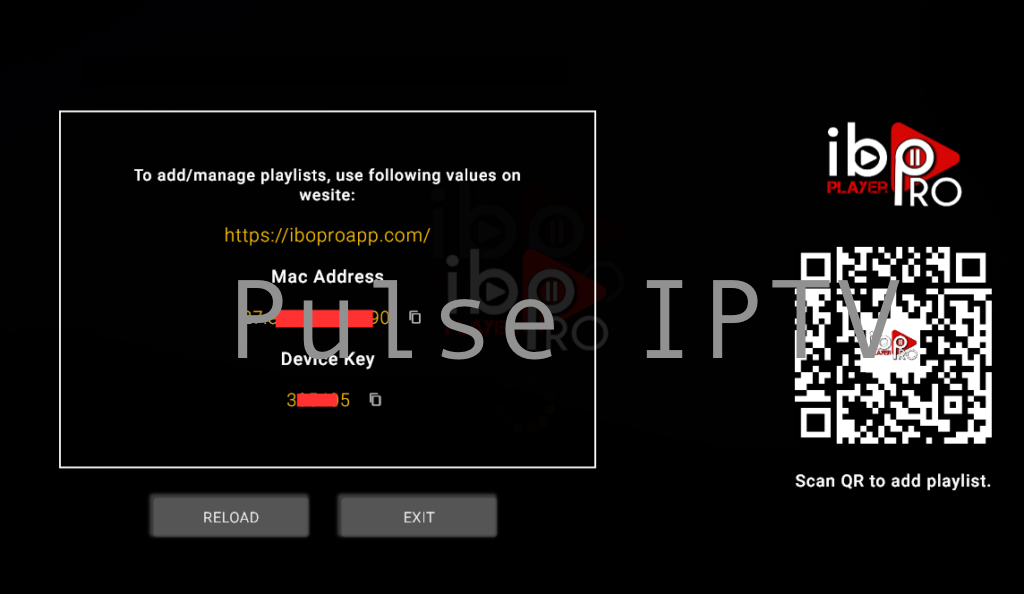
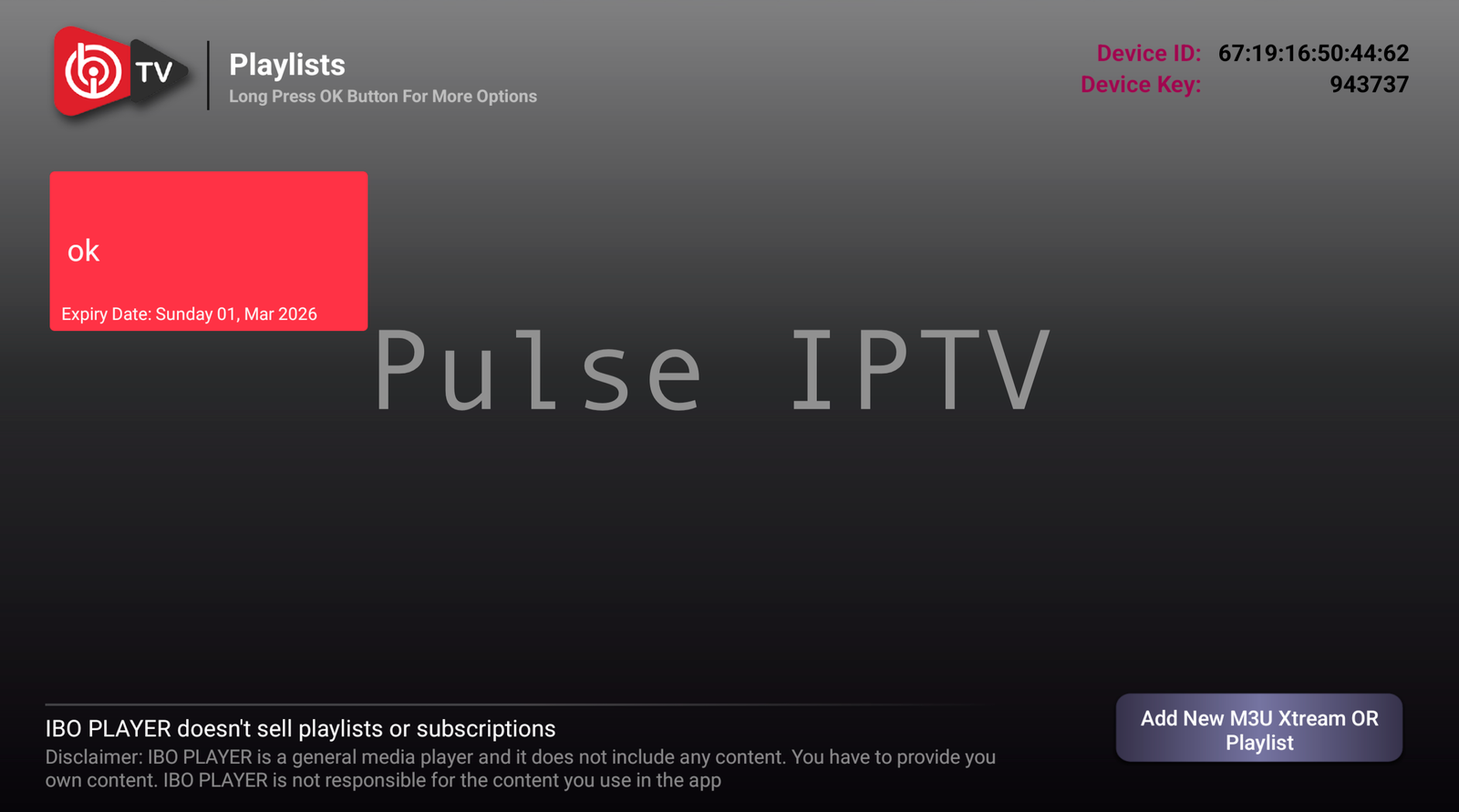
- Open the app once it’s finished downloading. You will see a home screen that displays your Device ID and Device Key. Take a photo of these or write them down—we will use them in the next step!
Phase 2: Connecting Your Pulse IPTV Playlist
This is where the magic happens. To sync your Pulse IPTV content, follow these steps on your mobile phone or computer browser:
- Launch the app on your Device, and it will show you this interface
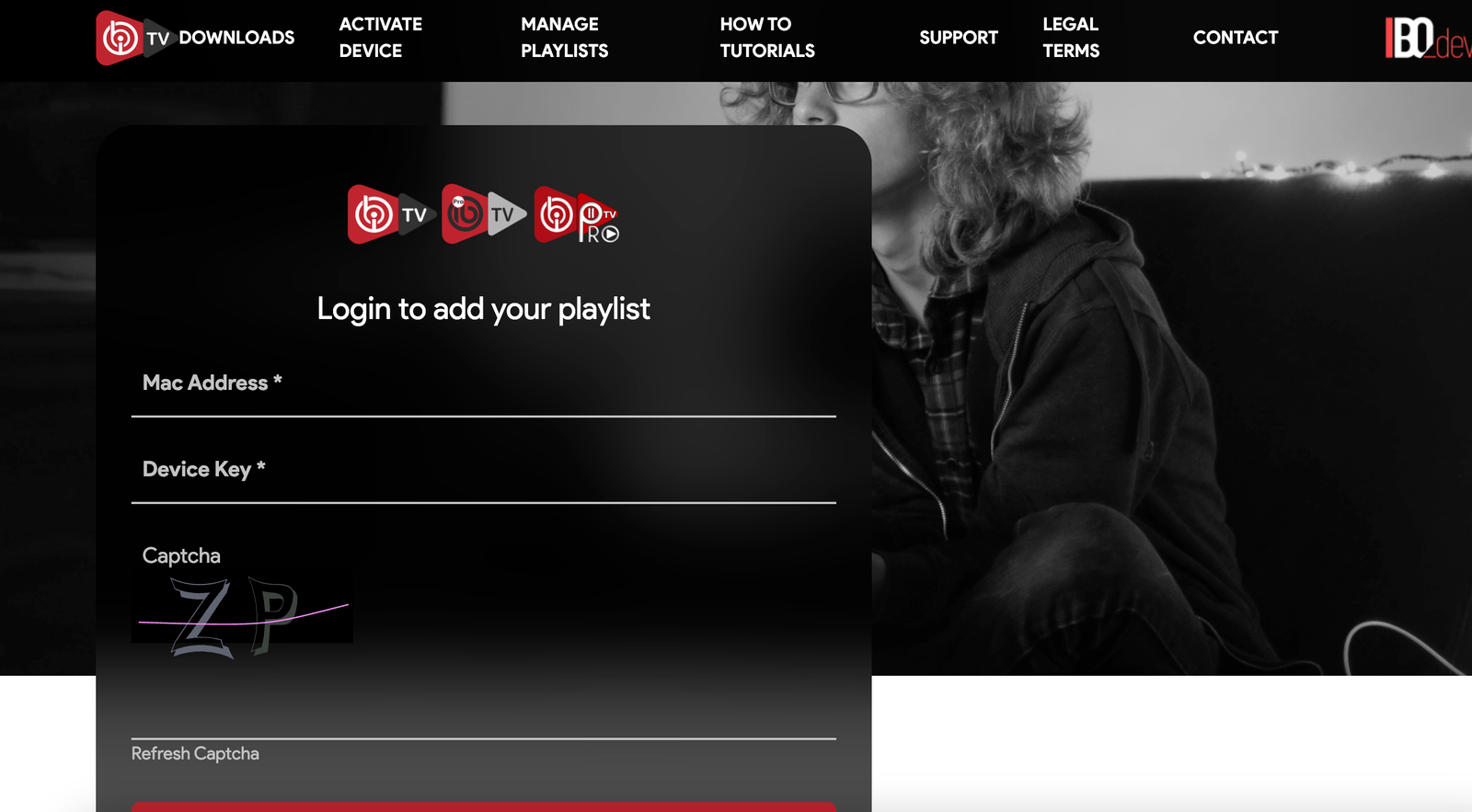
- Visit the IBO Player management portal at https://iboplayer.com/device/login
- Note: If you are using First Time IBO Player Visit the IBO Player Active Device buy the Player https://iboplayer.com/device/activate
- Enter your Device ID and Device Key to log into your device's profile.
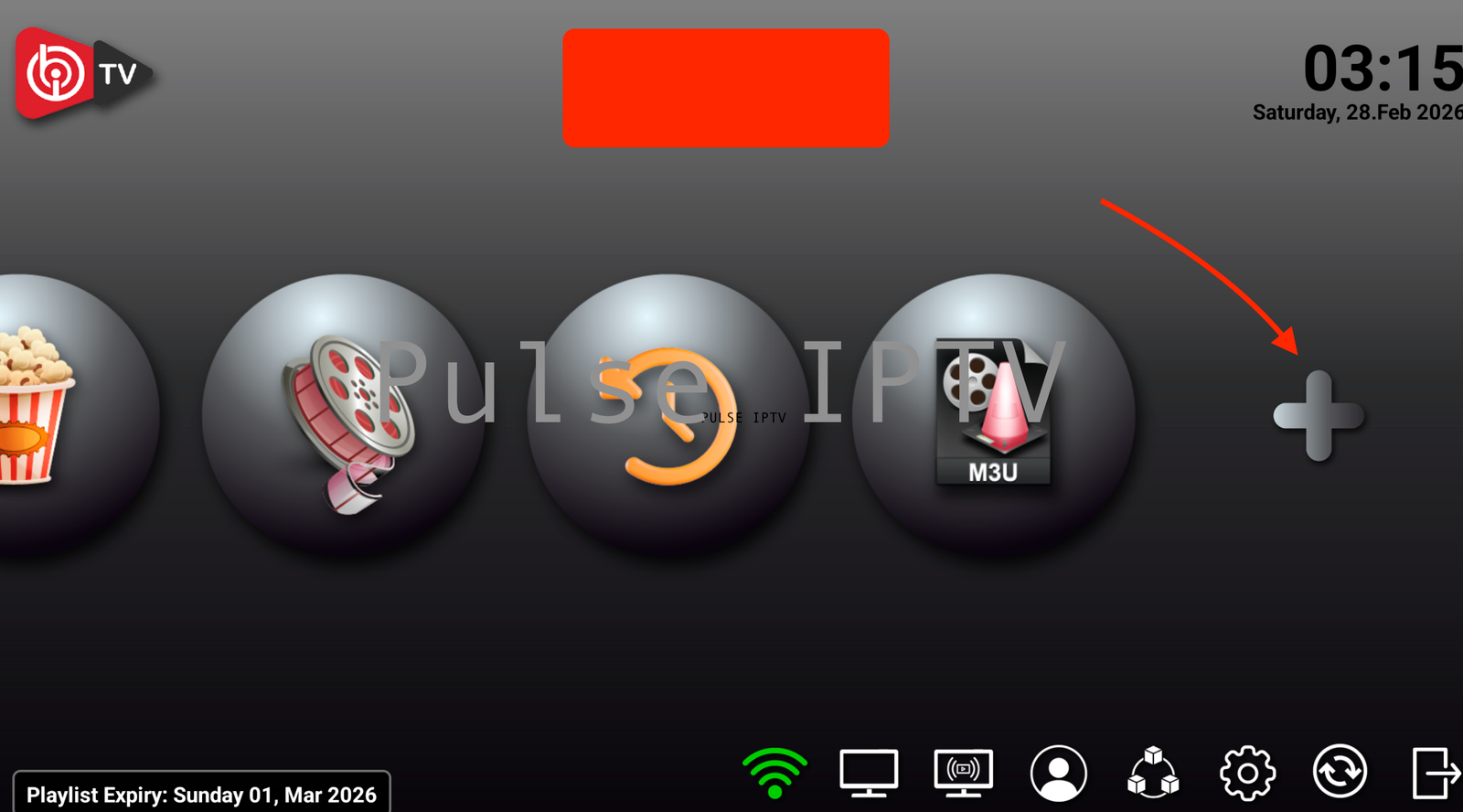
- Once the app Activeted Click on "Pulse + icon or Add Playlist"
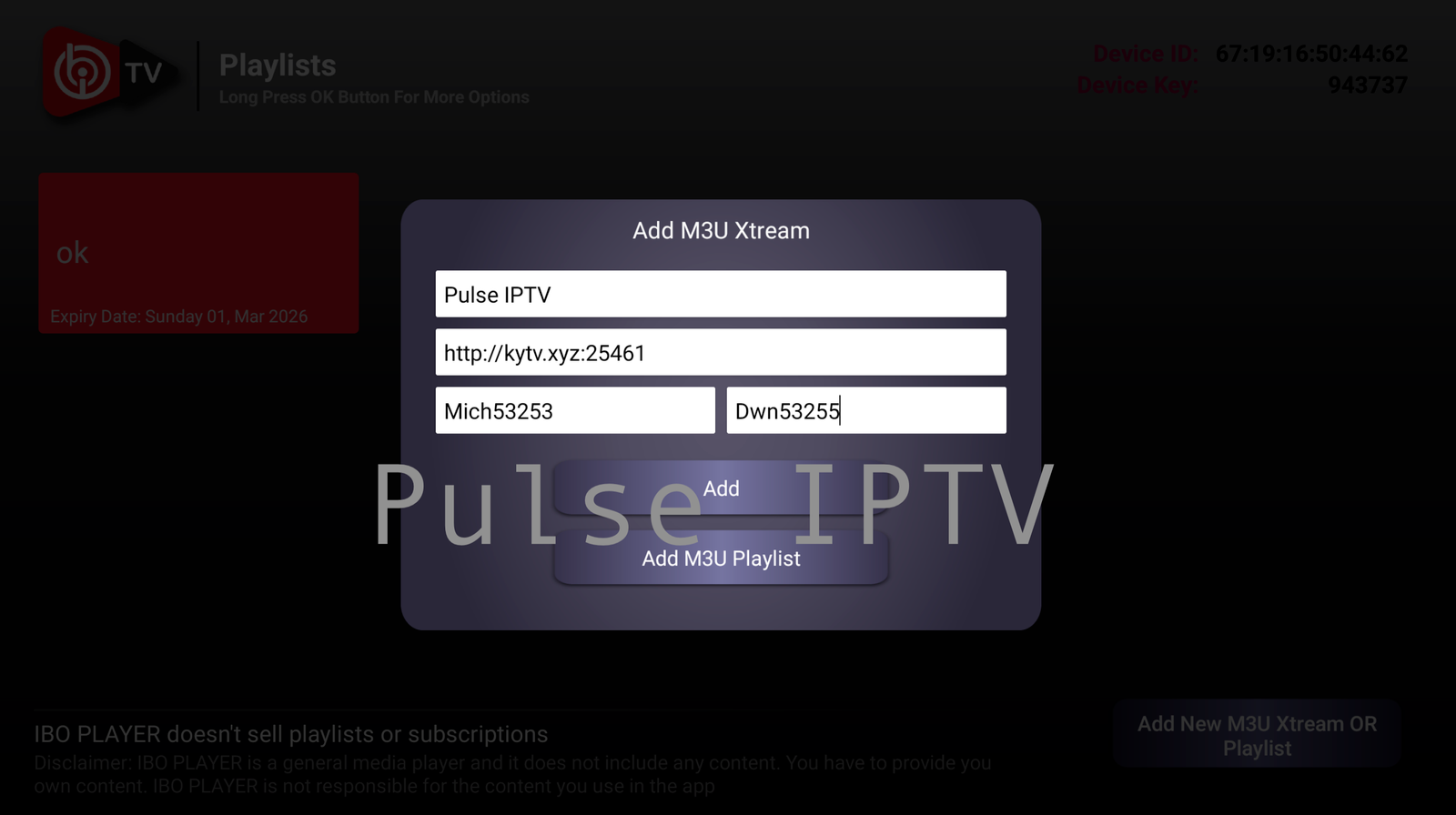
- Enter your Pulse IPTV account details:
- Playlist Name: Pulse IPTV
- Username: (Found in your welcome email)
- Password: (Found in your welcome email)
- Server URL: (Found in your welcome email)
- select Player List or Refresh. Your playlist will now appear! Select it and wait for the content to sync.
Ready to Watch?
You’re all set! You can now explore thousands of live channels and VOD options through the high-performance interface of IBO Player. If you haven't upgraded your plan yet, check out our Family Streaming Bundle for the best value.
Notice: IBO Player usually requires a one-time activation fee after the trial period. This fee is paid directly to the app developers and is not part of your Pulse IPTV subscription.
Questions? Reach out to our Support Center anytime!