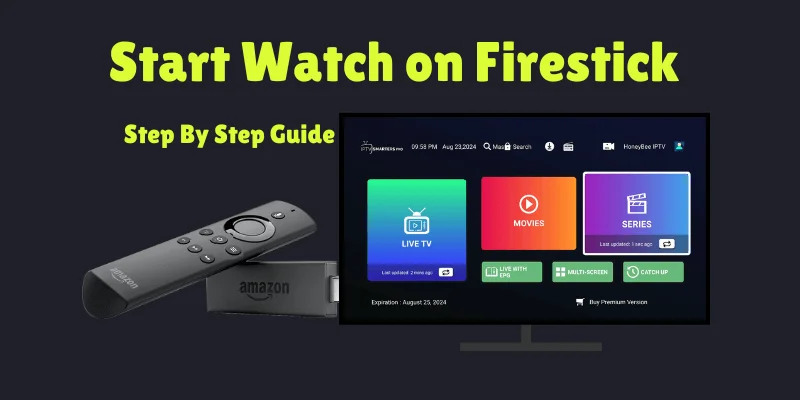
Amazon keeps the Firestick locked to its own app store, so IPTV players have to be added a different way. The method below is the one every Firestick owner uses: a free app called Downloader fetches the player, and you log in with your Pulse details.
It sounds technical the first time. It is not. Every screen you will see is pictured below, in order, so you can follow along with the remote in your hand.
- An Amazon Firestick, Fire TV Stick 4K / 4K Max, or Fire TV Cube
- Your Pulse IPTV username and password (from your welcome email)
- Around ten minutes
Step 1: Get the Downloader app
Downloader is free and it comes from Amazon's own store, so there is nothing risky about it.
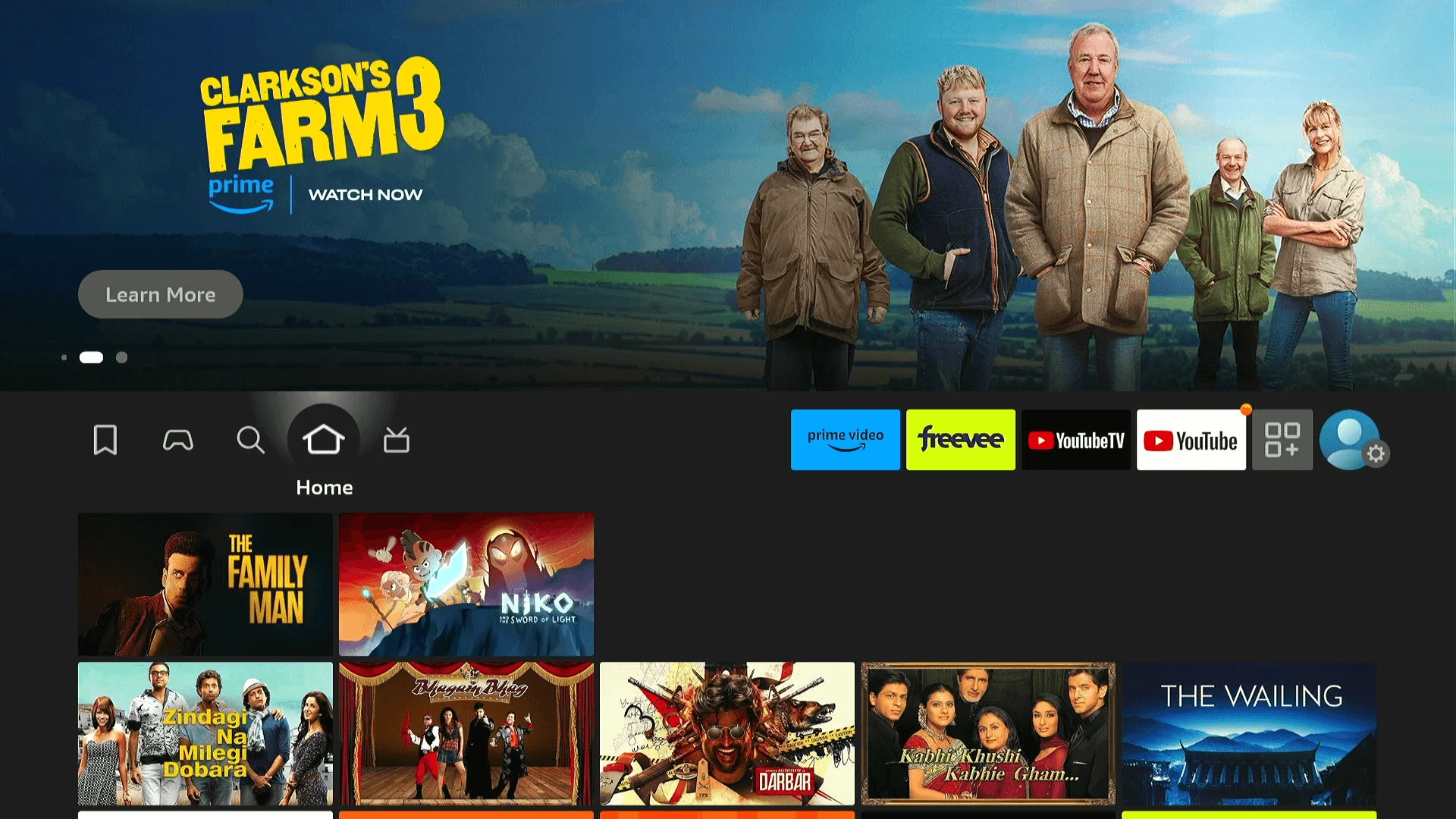
- From the Firestick home screen, move left to Find and open Search.
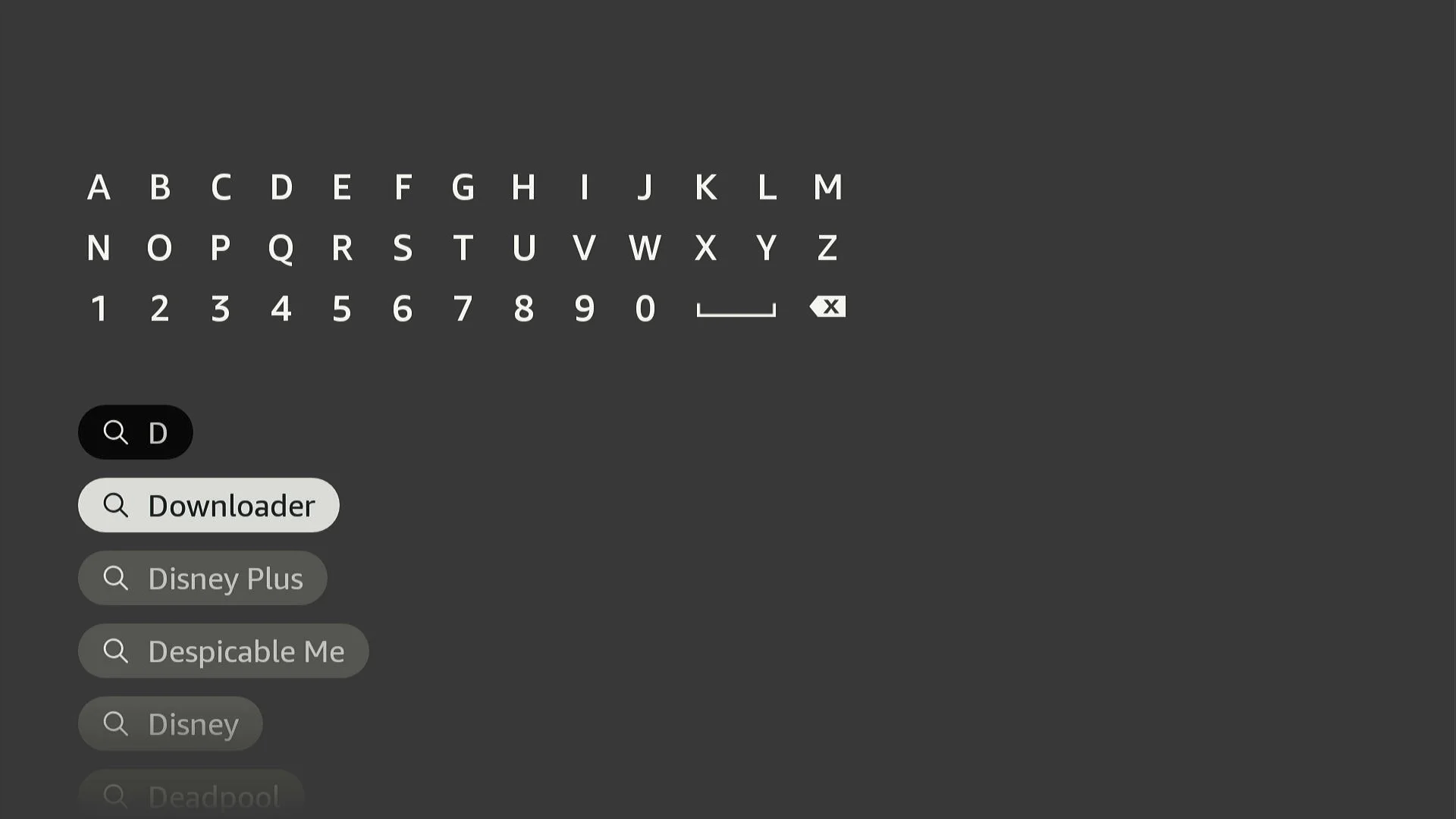
- Type Downloader with the on-screen keyboard and pick it from the suggestions.
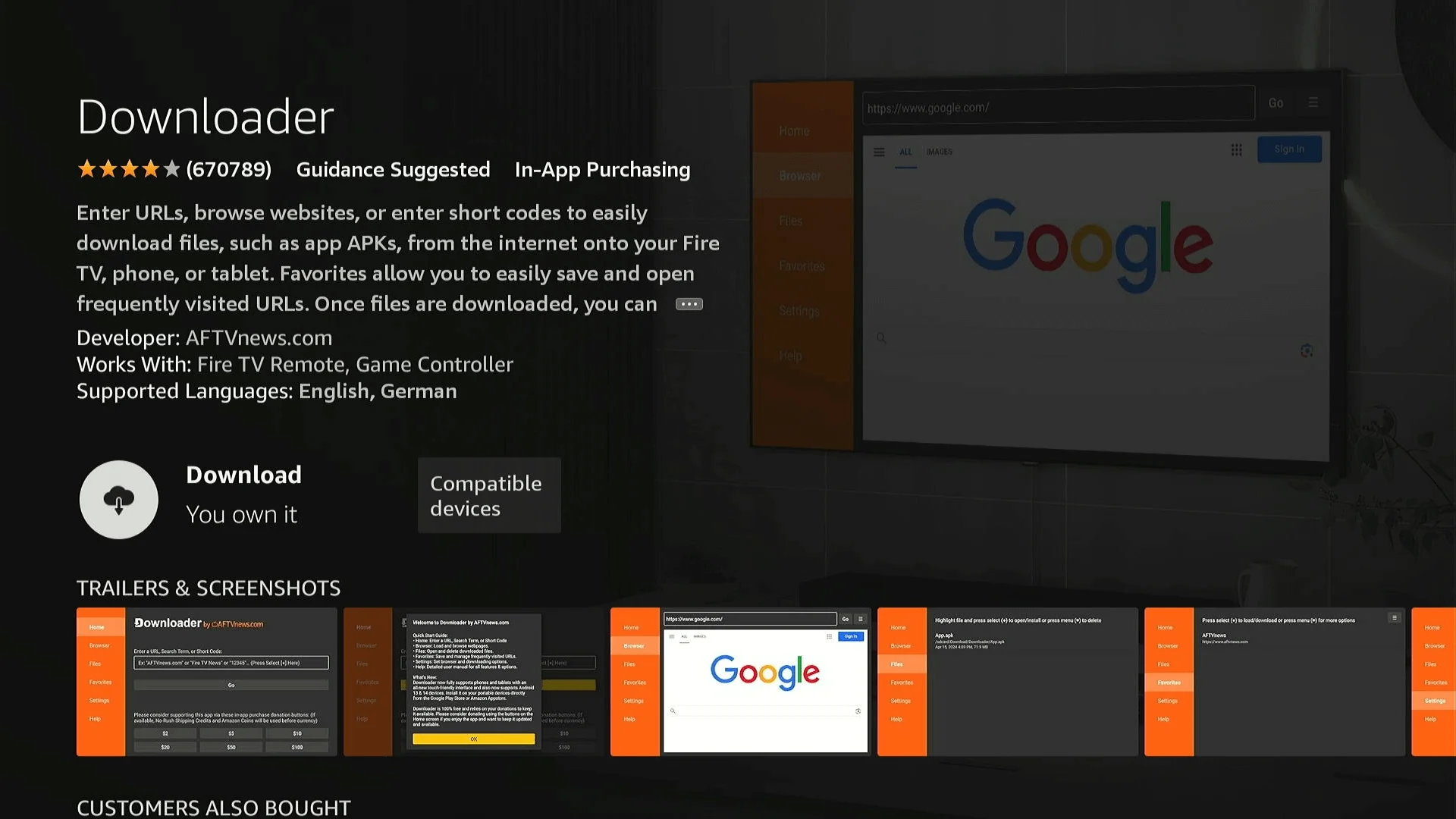
- Choose the orange Downloader icon and press Download (or Get).
Step 2: Switch on Developer Options
Newer Firesticks hide this menu until you unlock it. It takes seven clicks.
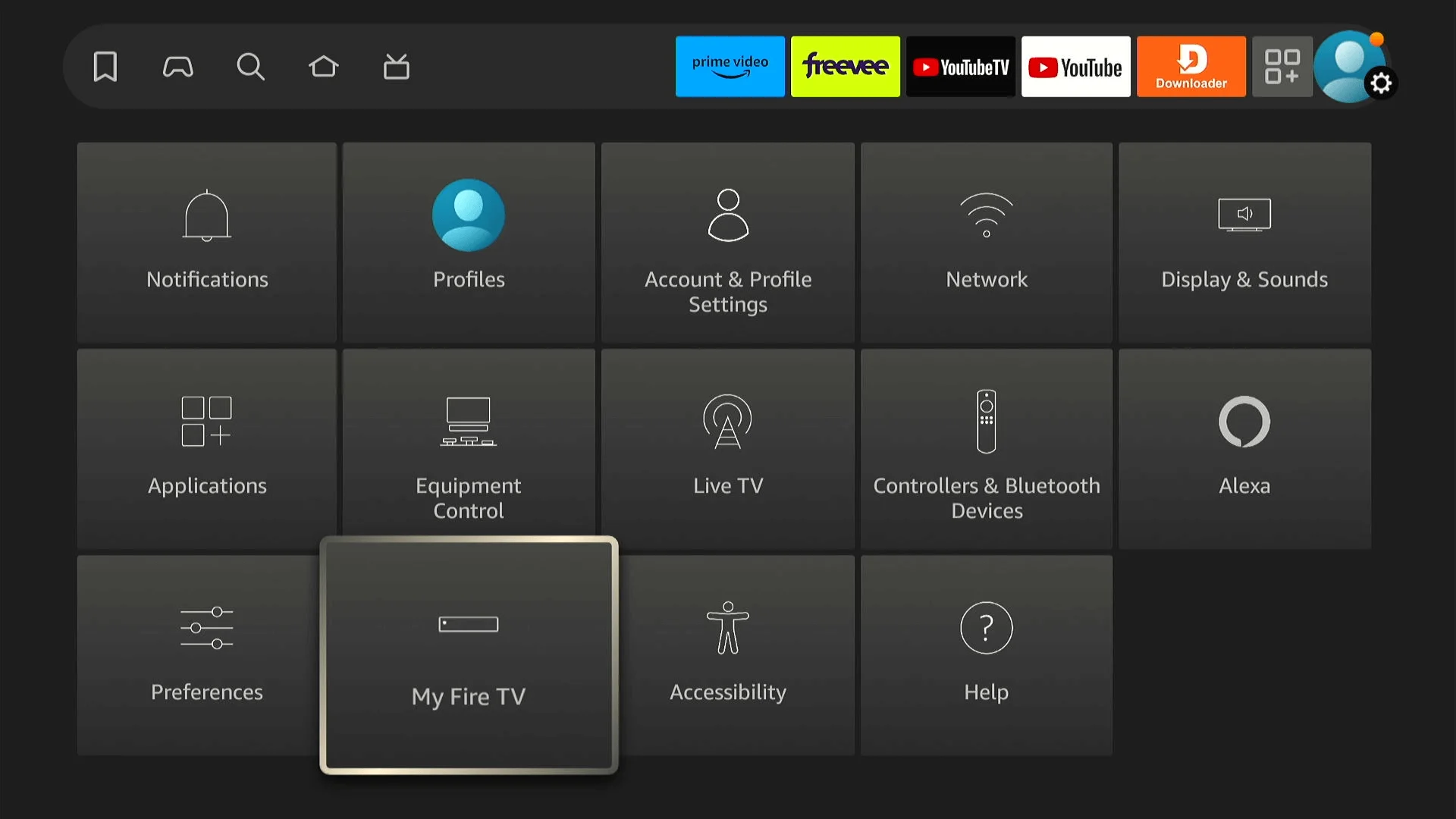
- Open the gear icon for Settings, then My Fire TV.
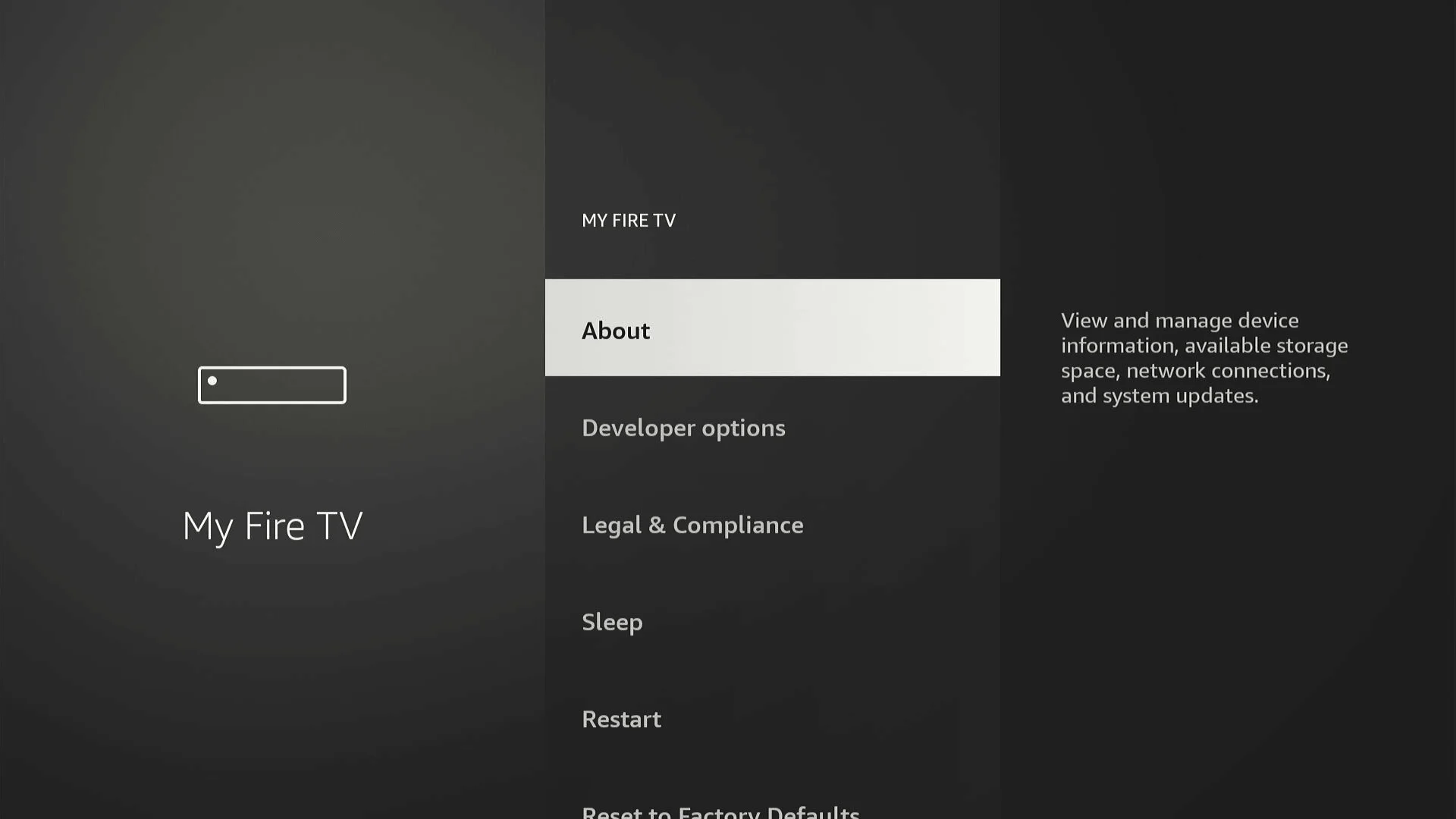
- If you cannot see Developer Options, open About.
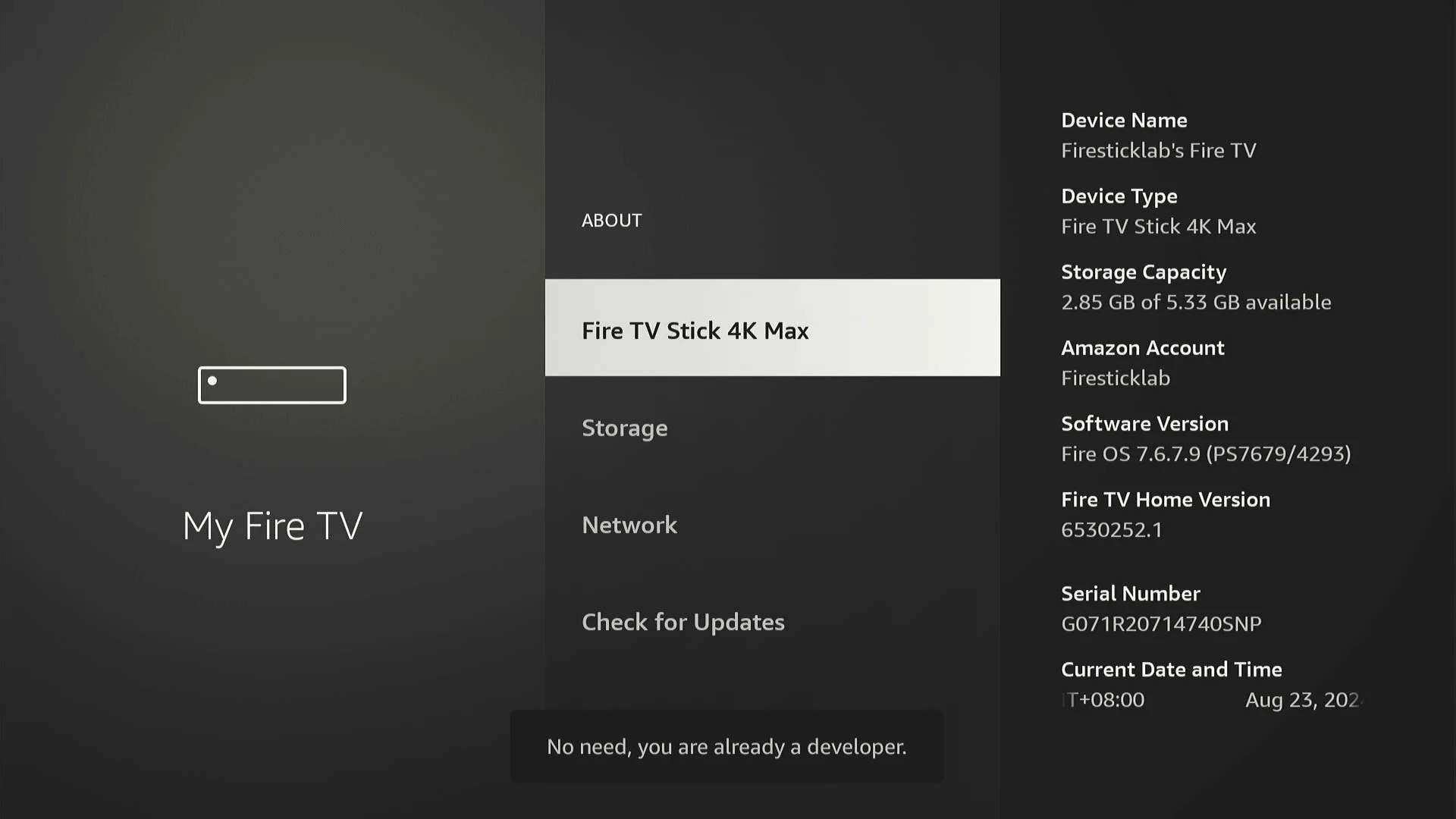
- Highlight your device name at the top and press the select button seven times. A message confirms you are now a developer.
- Press back once and Developer Options will appear.
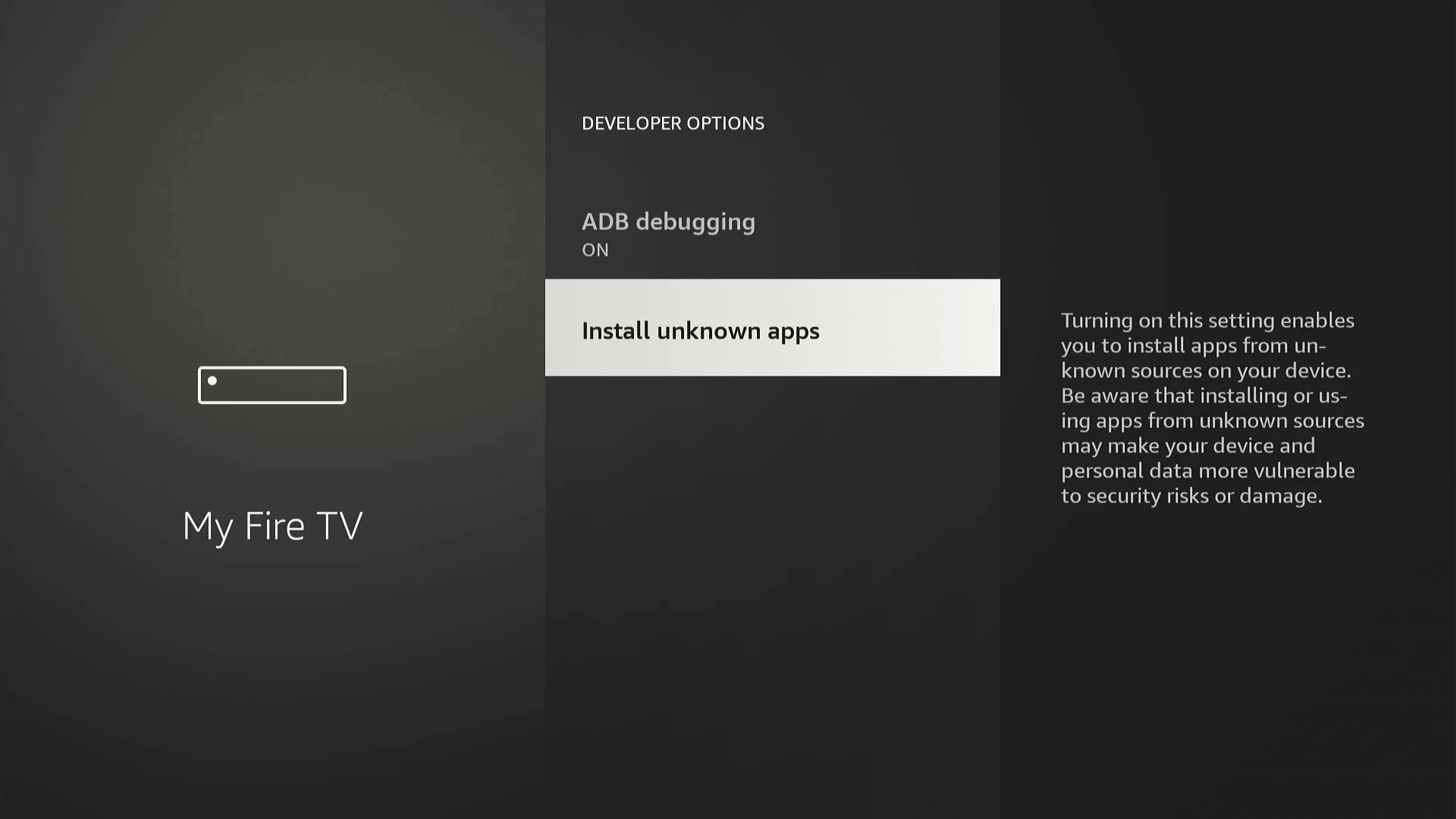
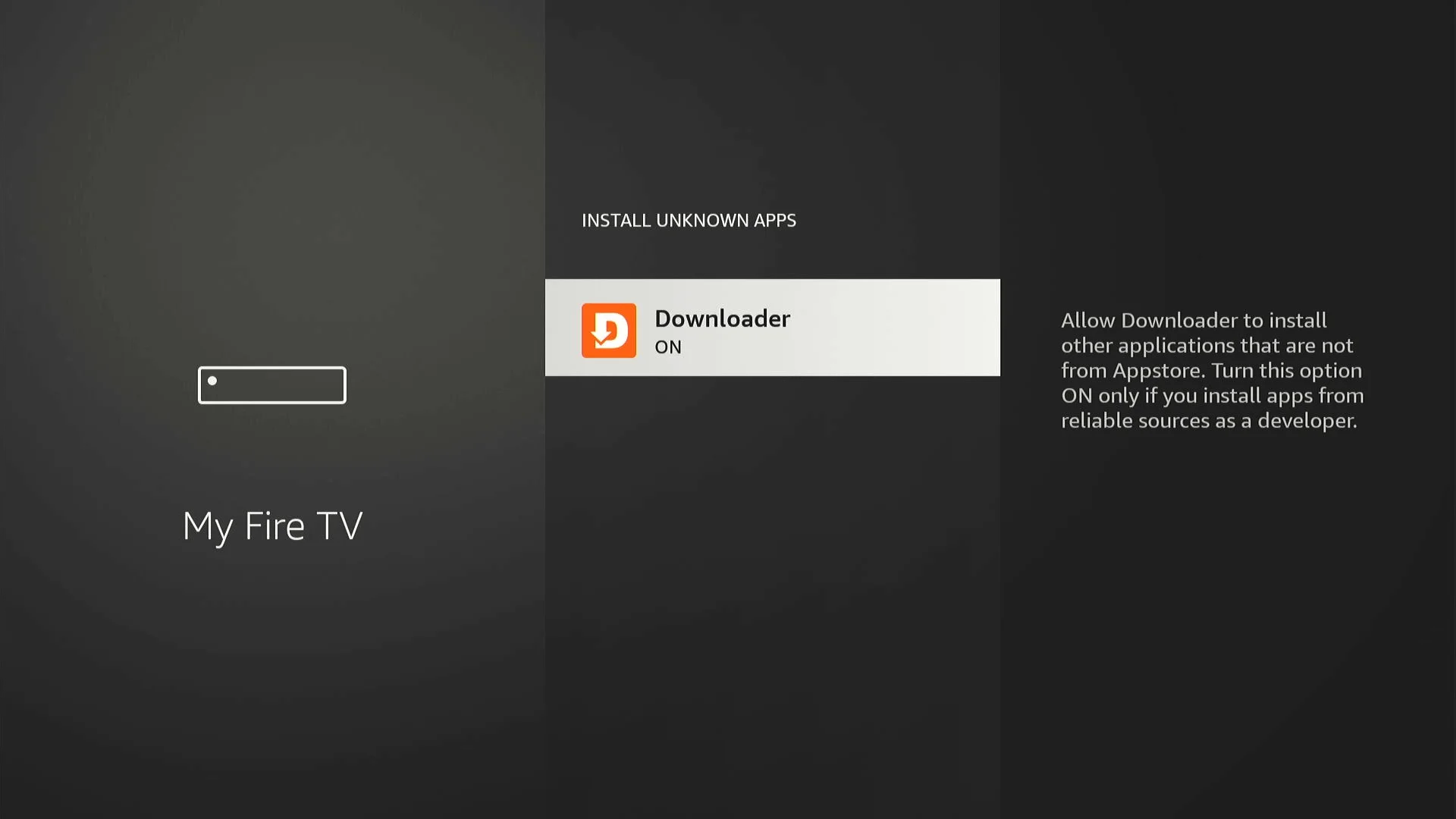
Step 3: Let Downloader install apps
This permission is given to Downloader only, not to your whole device.
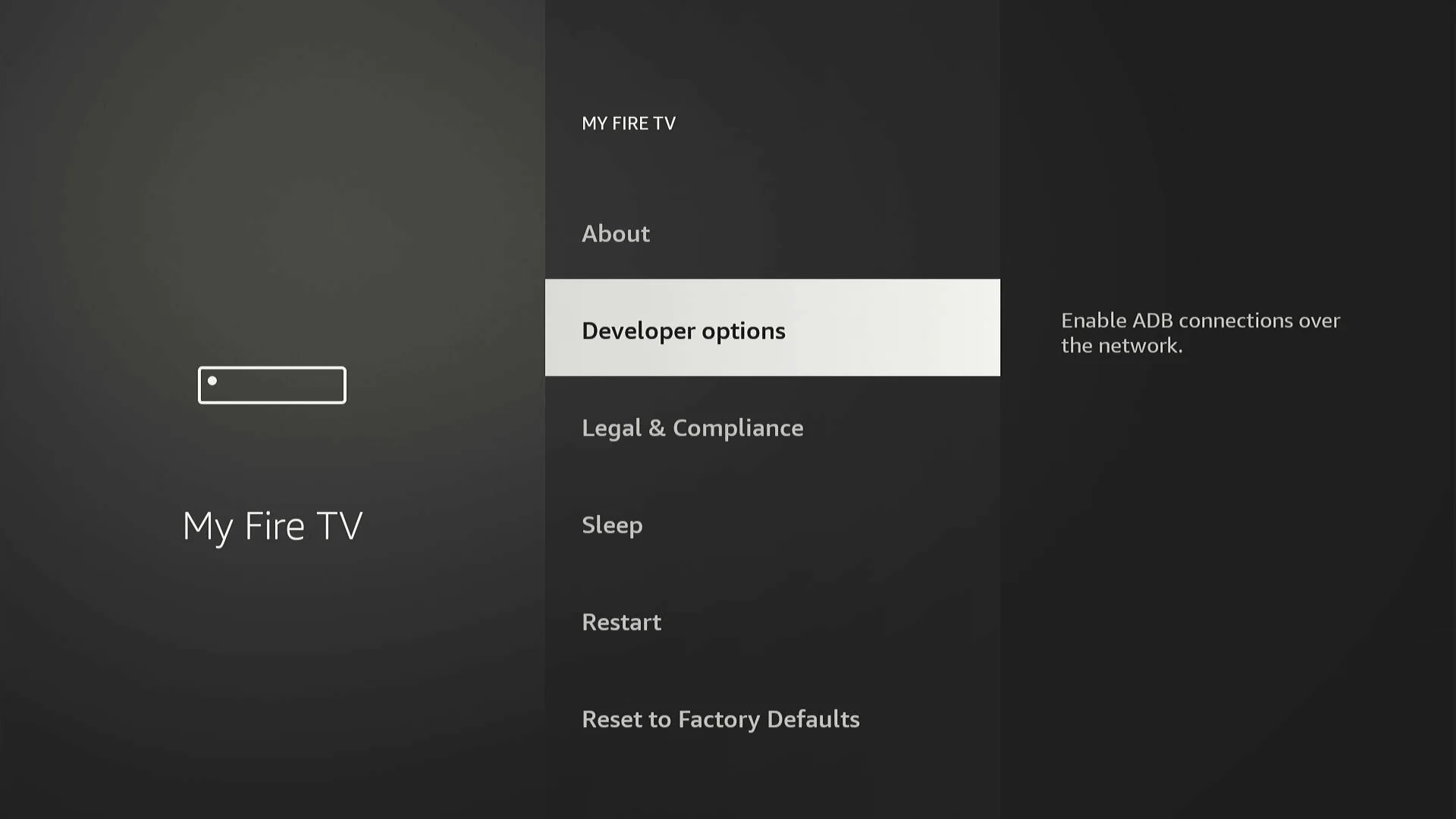
- Open Developer Options.
- Choose Install unknown apps.
- Find Downloader in the list and turn it ON.
Step 4: Download IPTV Smarters
IPTV Smarters is the player that Pulse IPTV runs inside.
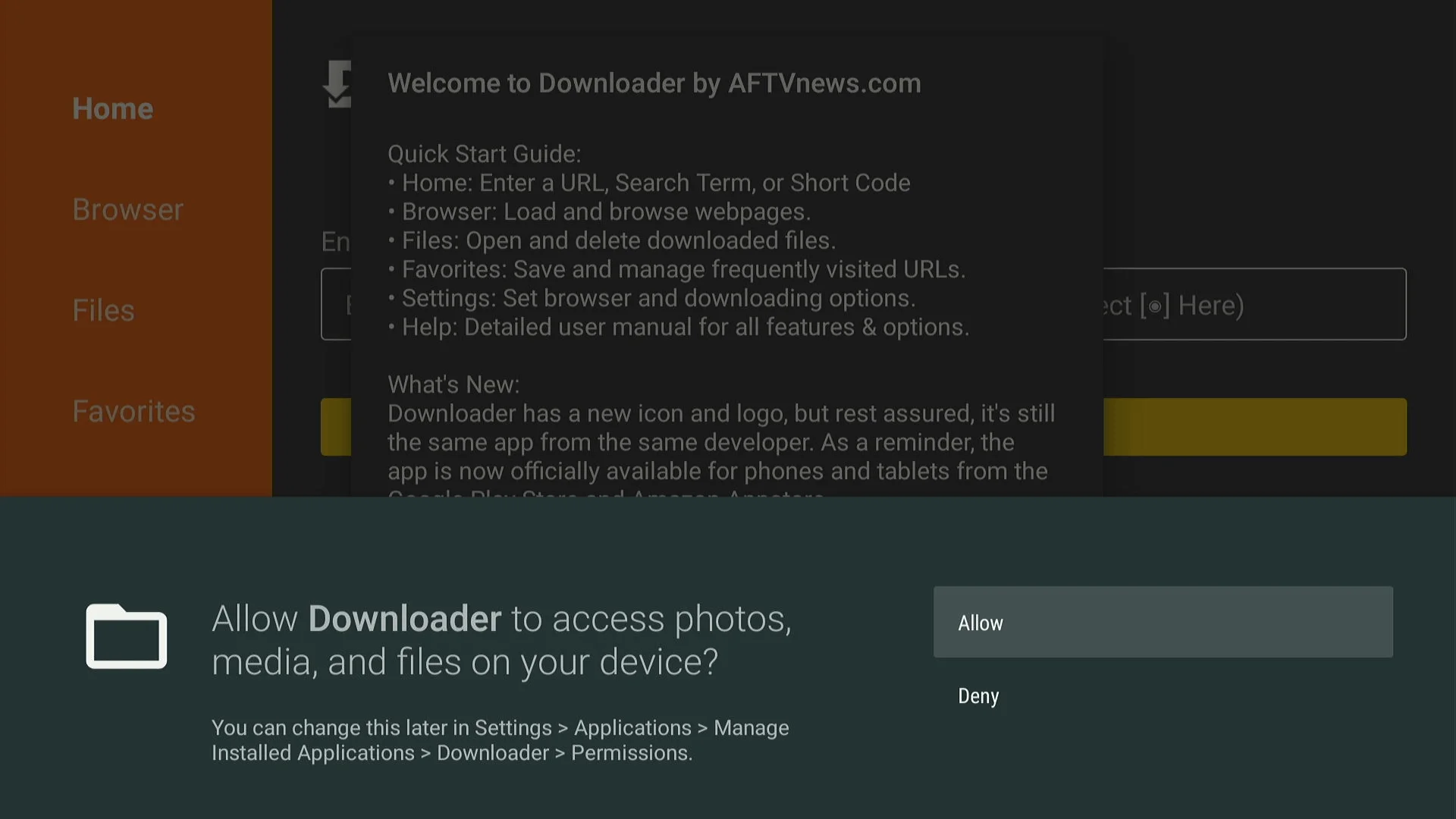
- Open Downloader and press Allow when it asks for storage access.
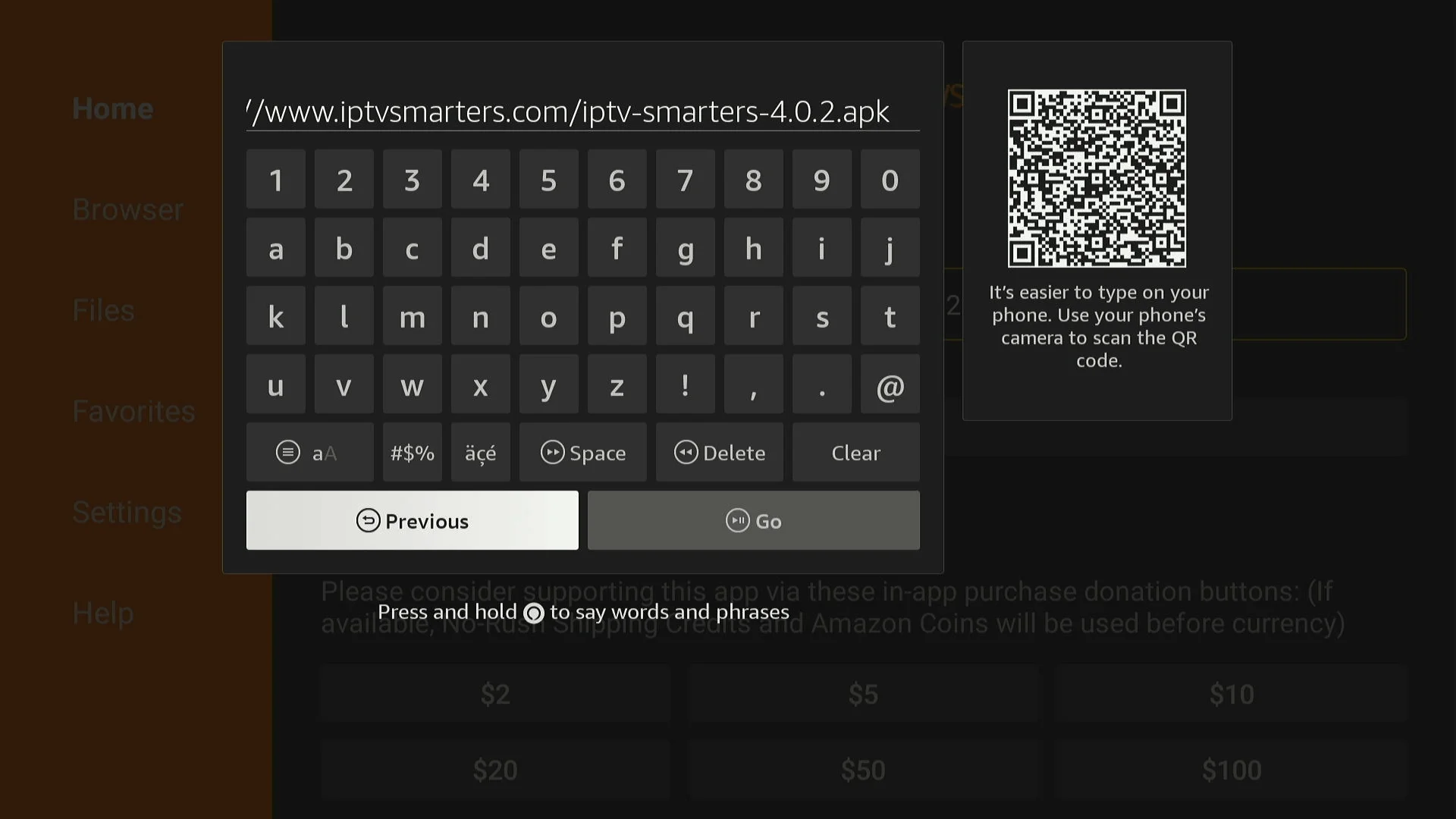
- Select the address bar and type the download address shown below.
- Press Go. The download takes under a minute.
Version numbers change over time. If this exact address stops working, visit iptvsmarters.com and use their current Android download.
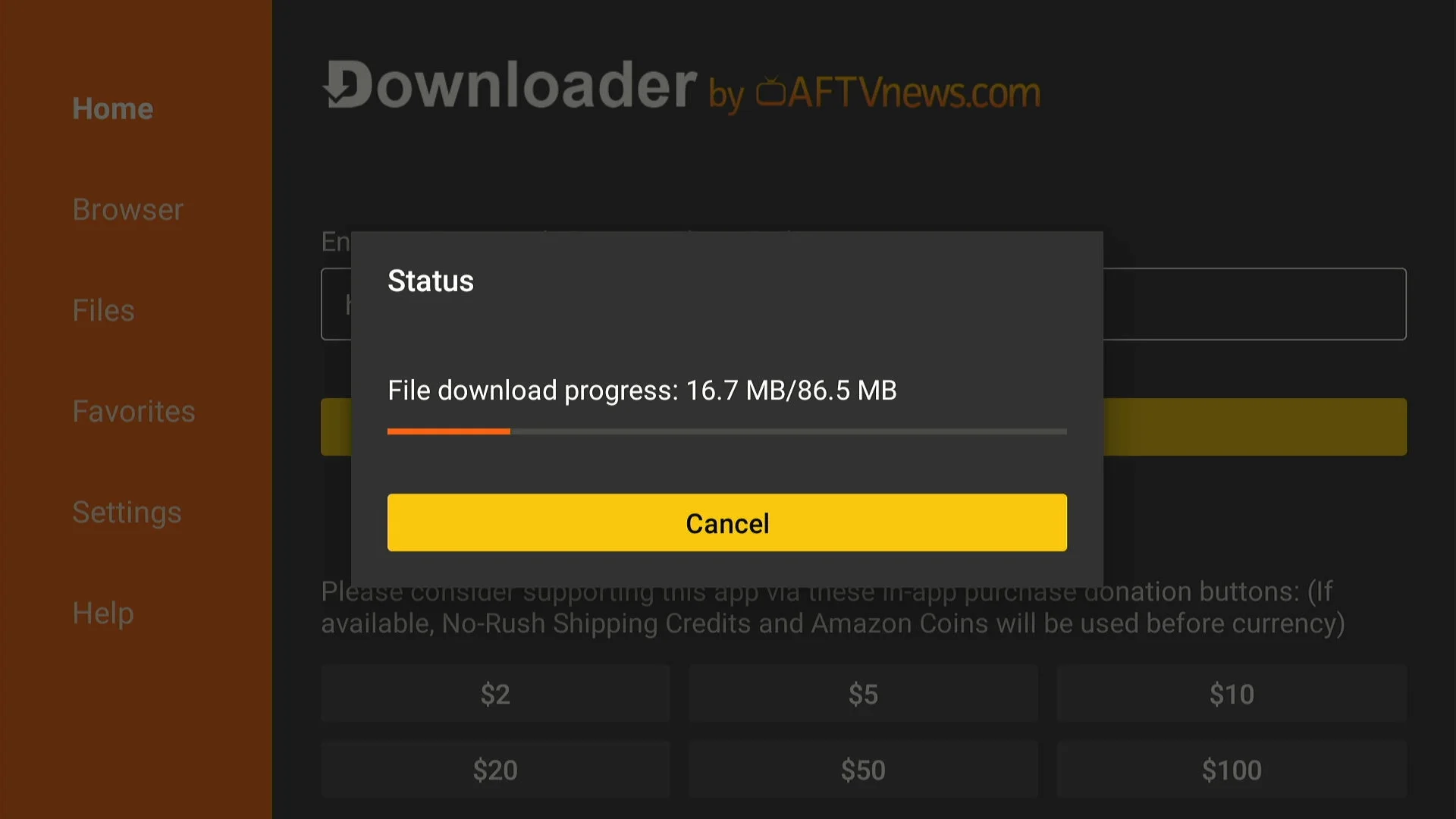
Step 5: Install the app
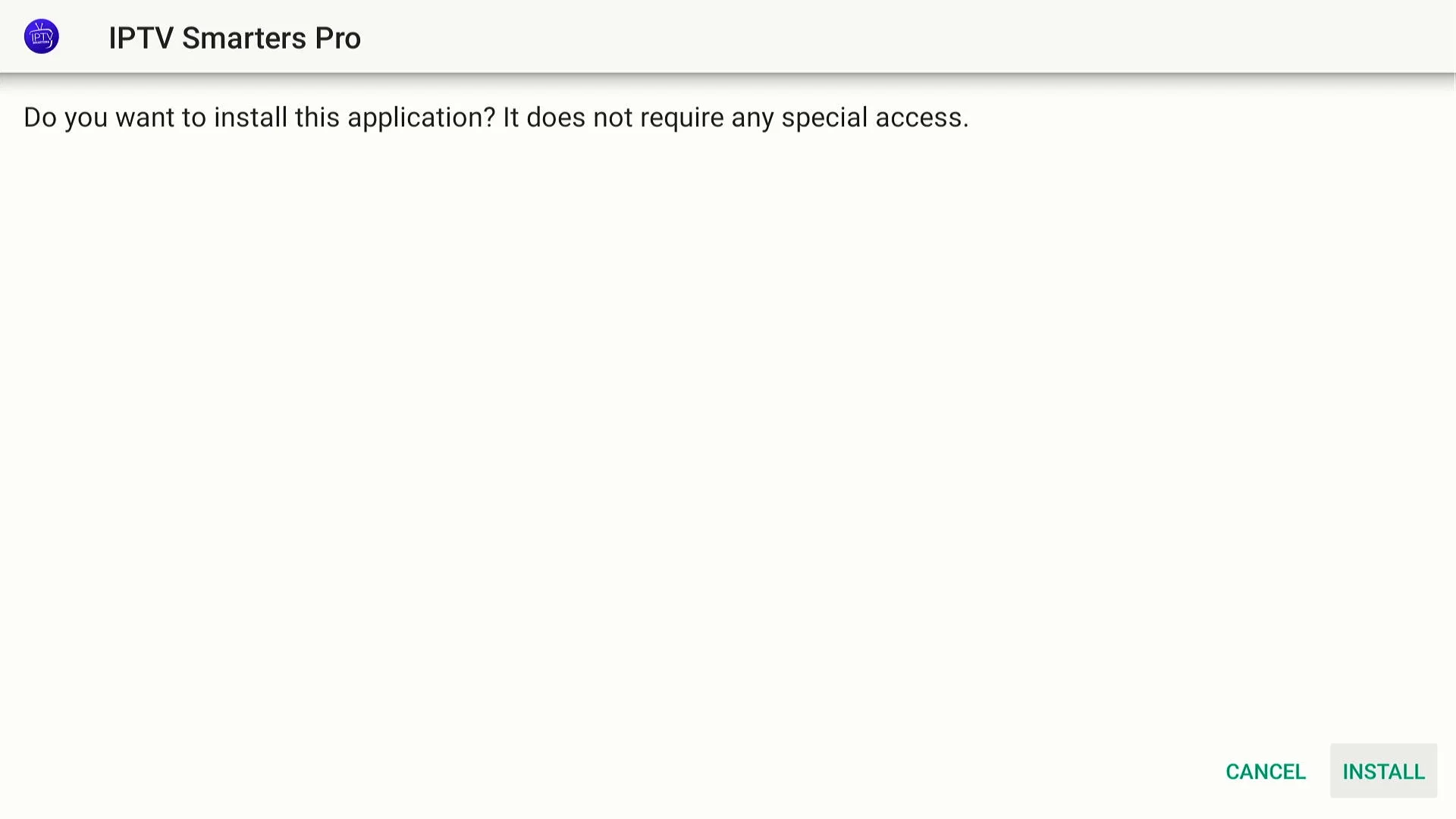
- When the download finishes, the installer opens by itself. Choose Install.
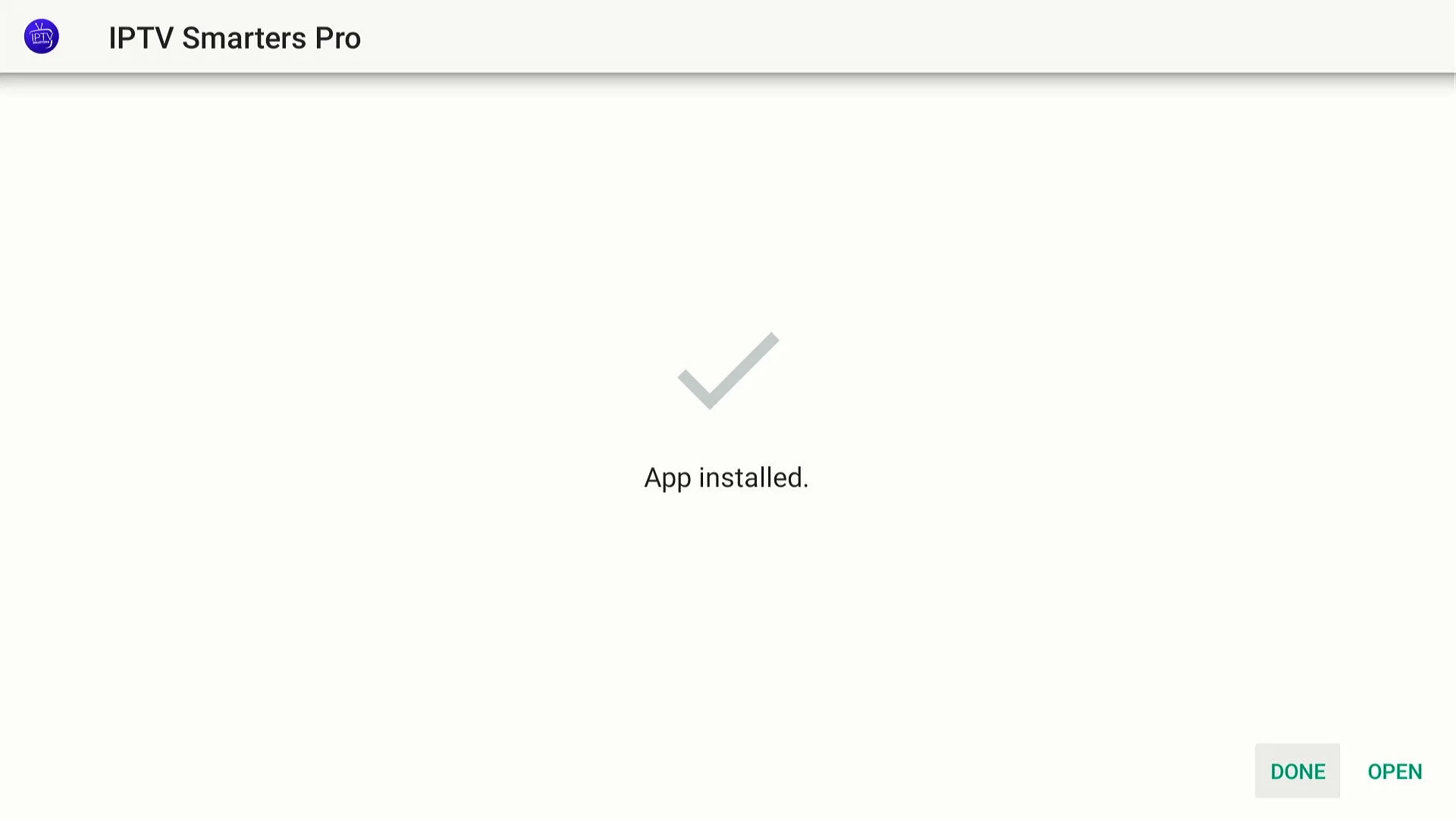
- Choose Done rather than Open, then let Downloader delete the file. You do not need it again and it frees space.
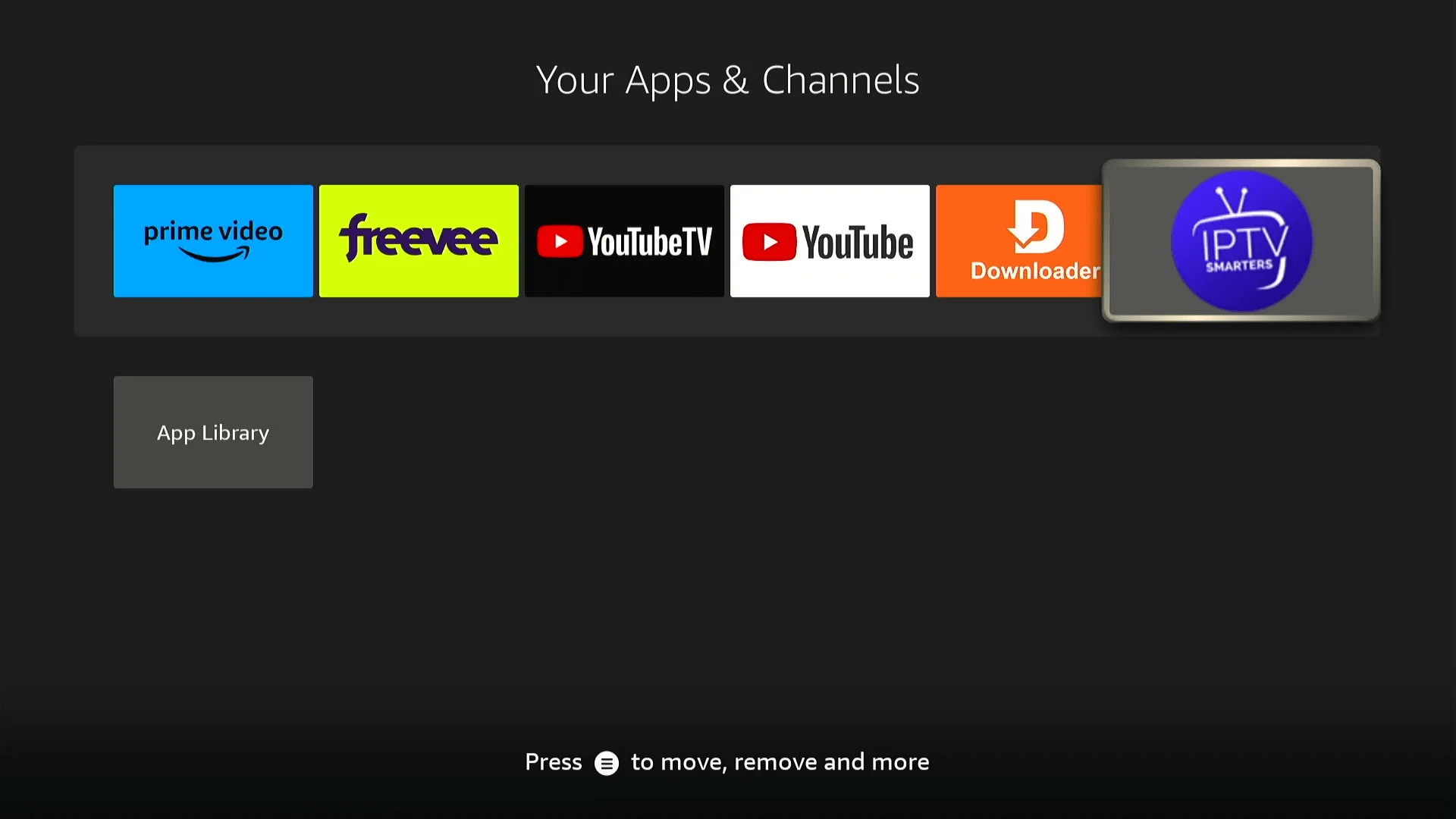
- The app now sits in Your Apps & Channels. Hold the Home button and choose Apps to find it.
Step 6: First launch
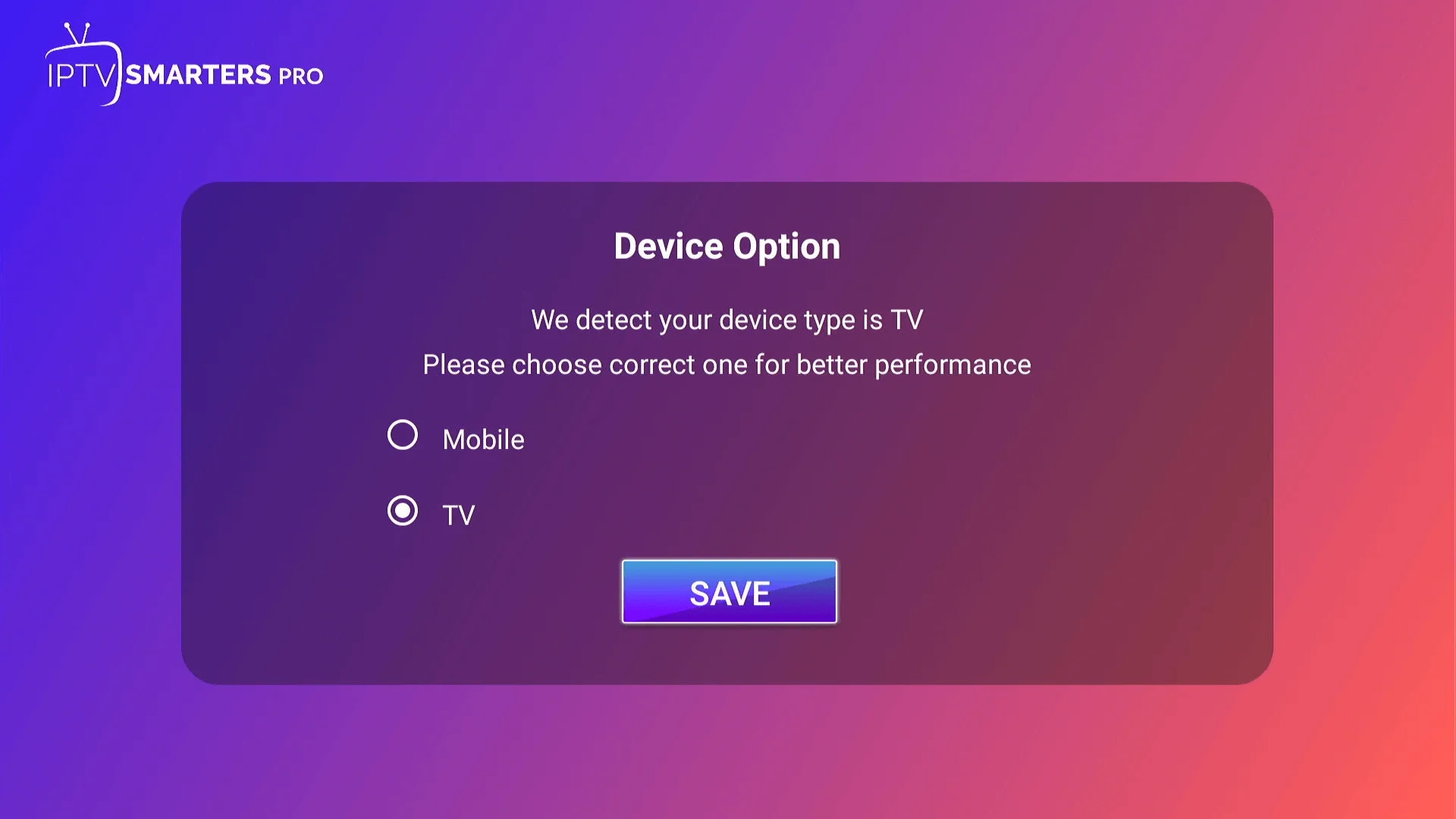
- Open IPTV Smarters. When asked what kind of device this is, choose TV and press Save.
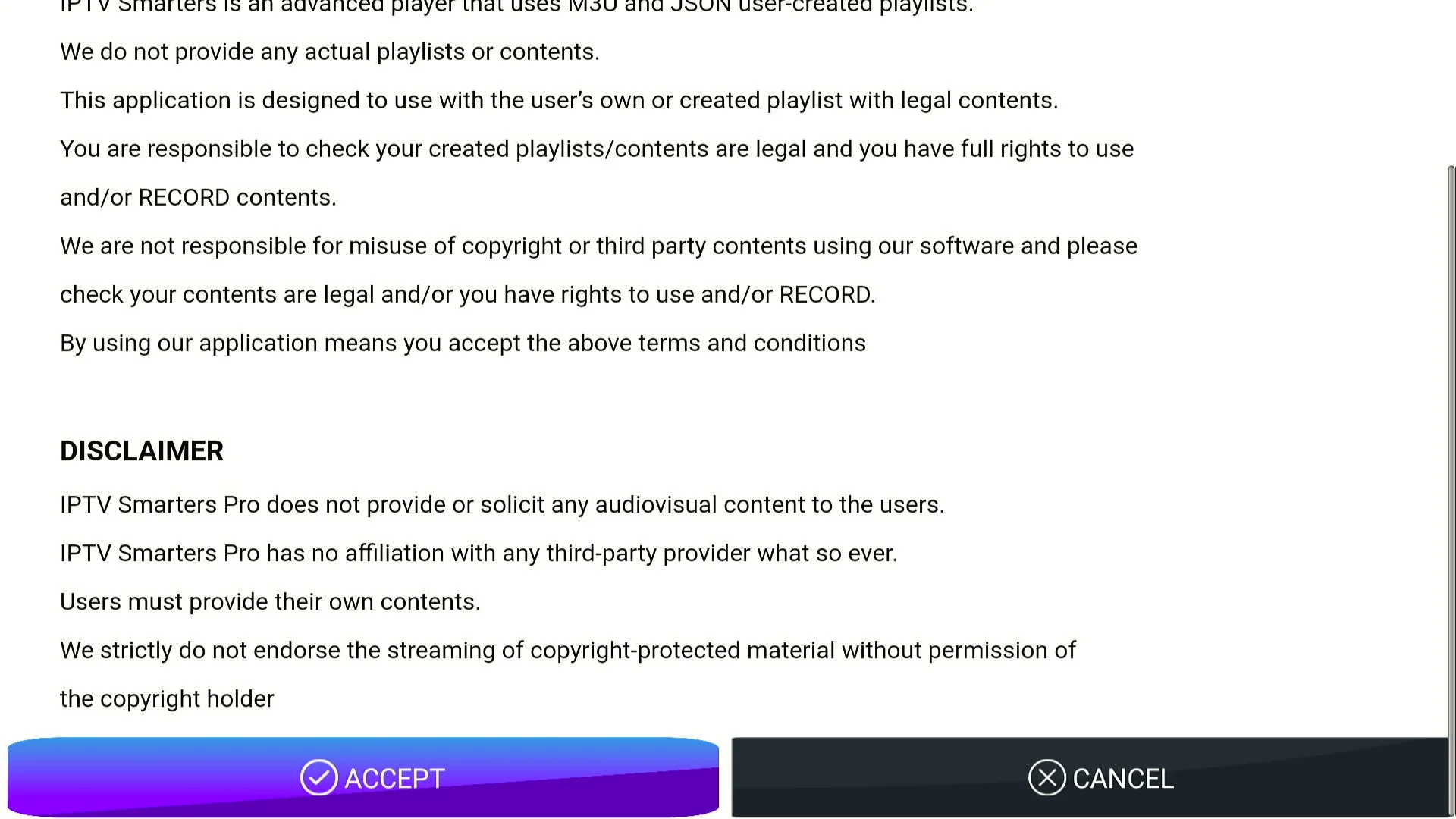
- Read and Accept the terms.
Step 7: Log in to Pulse IPTV
This is where your Pulse details go.
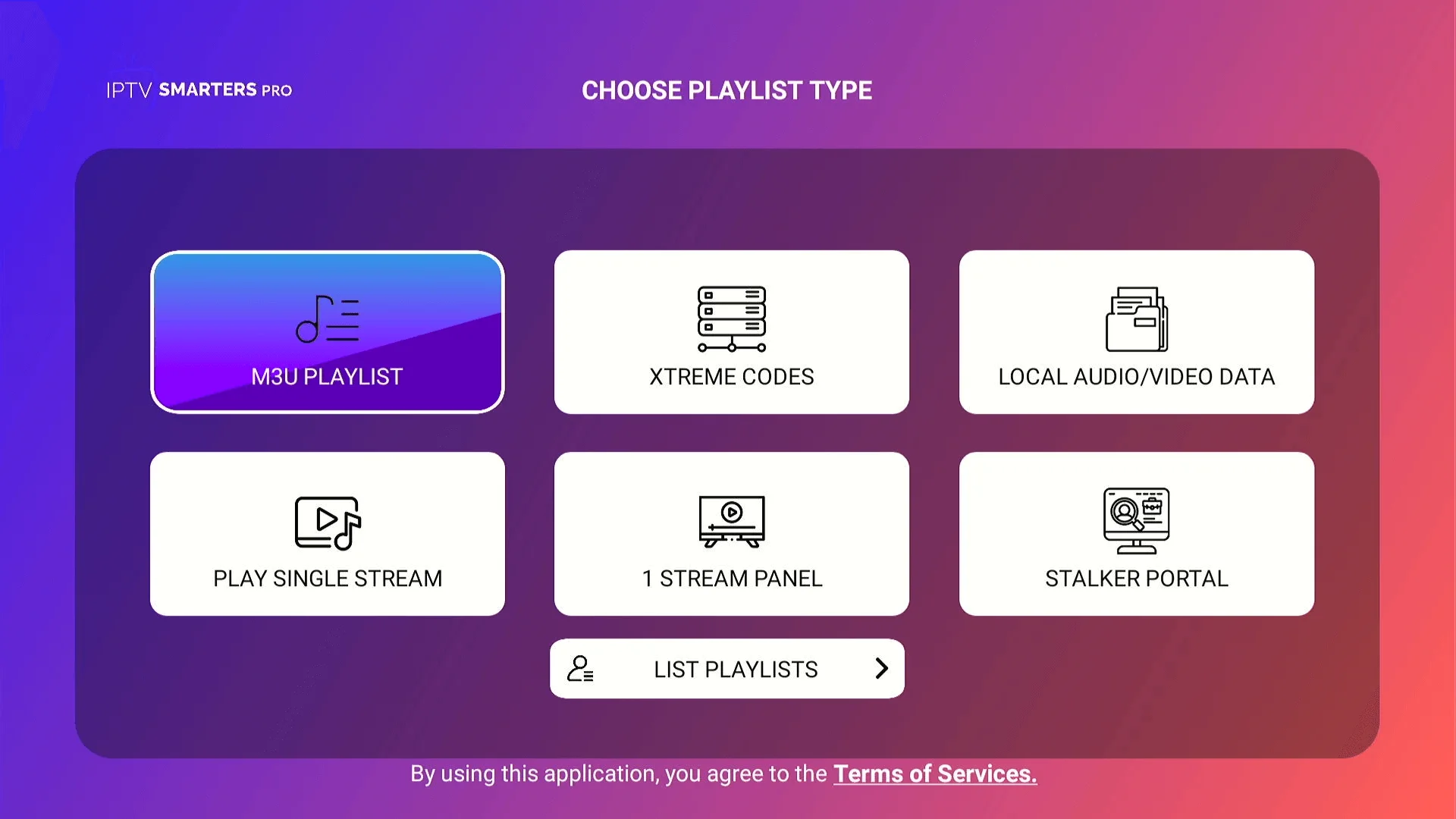
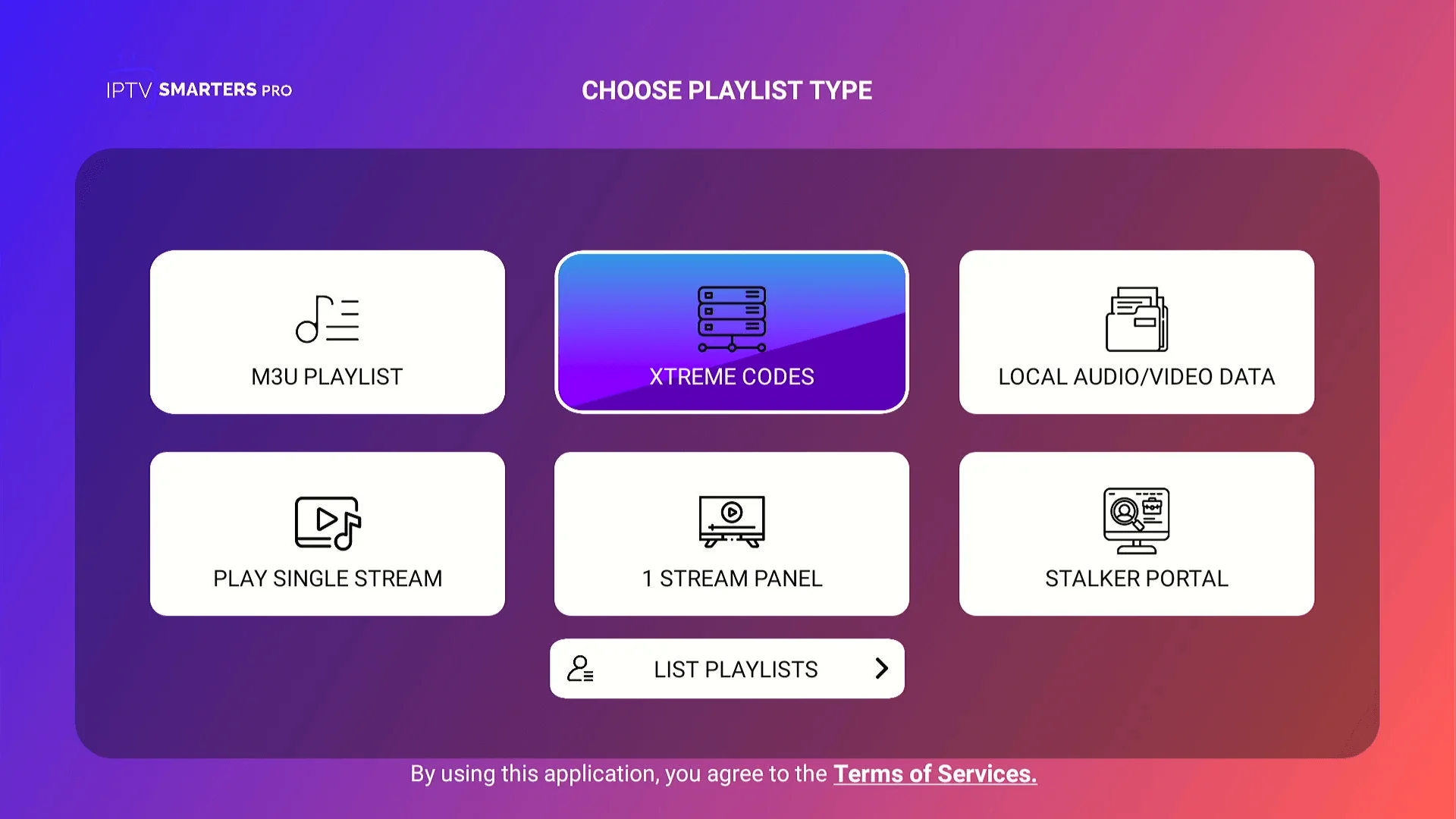
- Choose Login with Xtream Codes API (it may just say Xtream Codes).
- Any name: type Pulse IPTV.
- Username and Password: copy them exactly from your welcome email. They are case sensitive.
- URL: the server address from your welcome email, including
http://and the port number. - Press Add User.
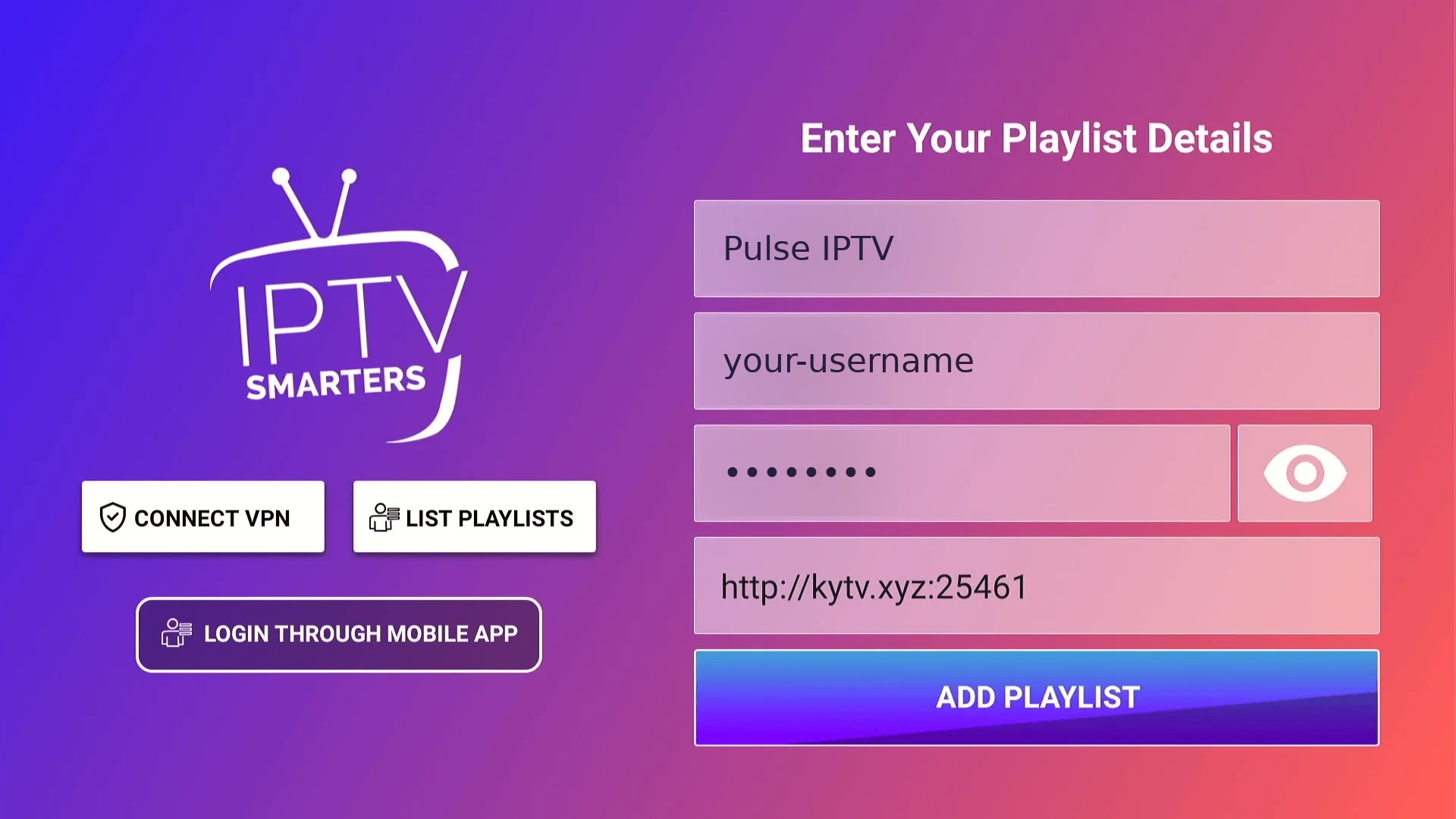
Step 8: Start watching
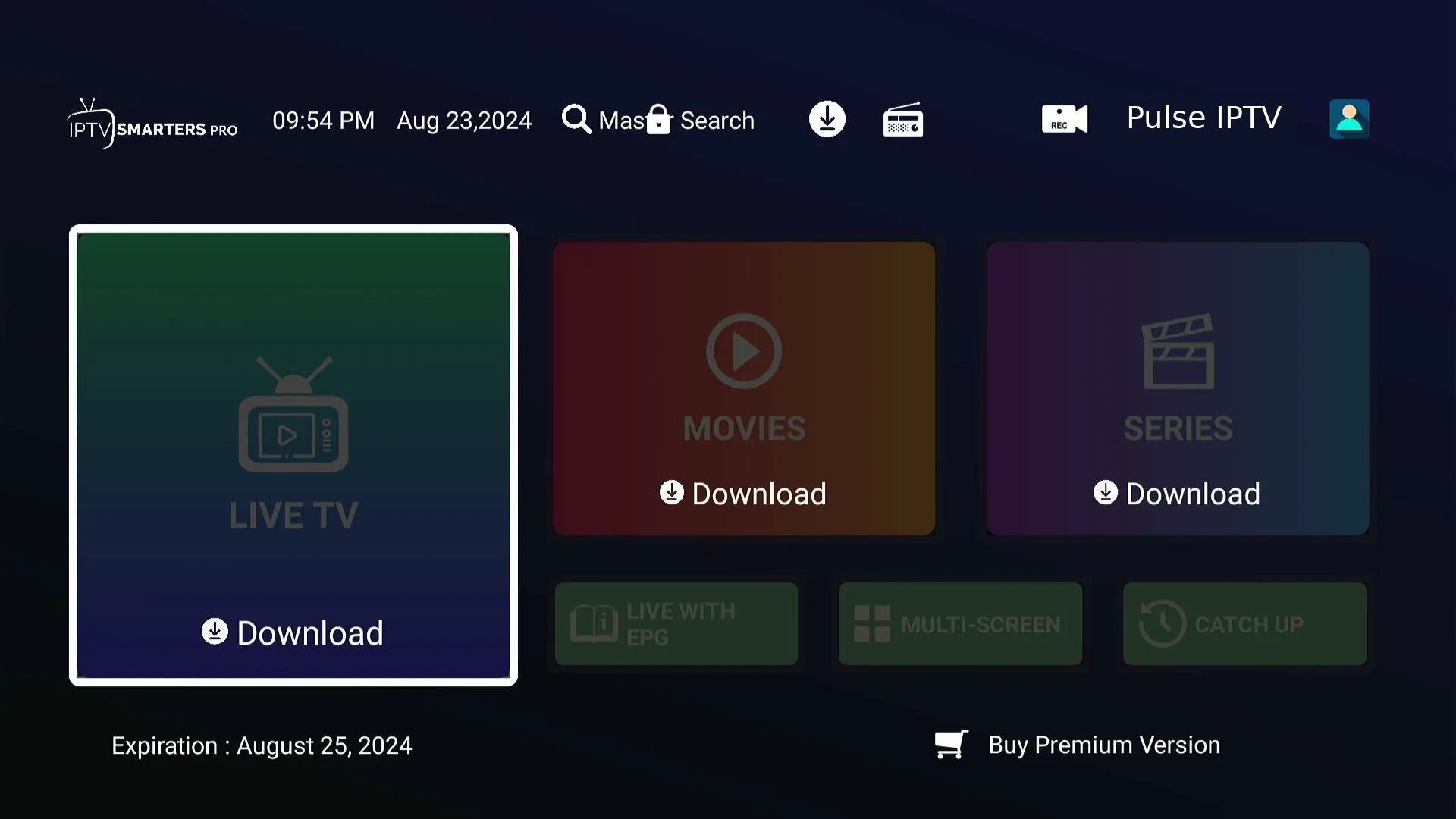
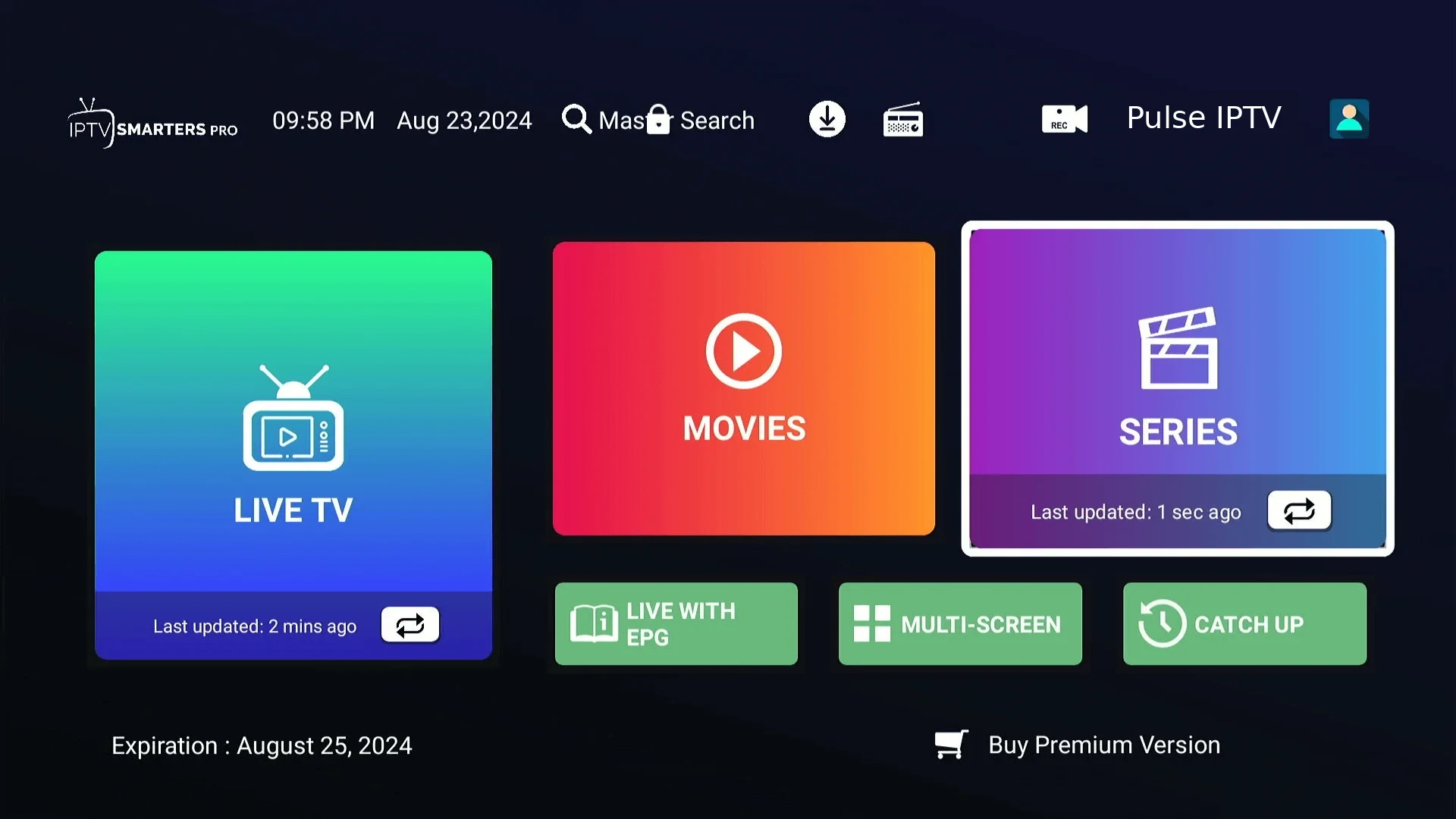
- The app downloads your channels, films and series. The first time takes a minute or two.
- When it finishes you land on the main menu: Live TV, Movies and Series. You are done.
If something goes wrong
Developer Options is missing
Go to Settings > My Fire TV > About and click your device name seven times.
"App not installed"
Free up space by deleting apps you no longer use, then install again. The installer needs roughly double the app's size free.
Login rejected
The username and password are case sensitive, and the server address must include http:// and the port. Copy and paste rather than retyping.
Channels buffer
Plug the Firestick into your router with an Ethernet adapter if you can. Wi-Fi is the most common cause.
Questions
Is Downloader safe?
Yes. It is published in Amazon's own app store and has millions of installs. It simply fetches files from the address you type.
Will this void my Firestick warranty?
No. Developer Options is a standard setting Amazon includes on every Firestick.
Do I have to do this again after an update?
No. Once the app is installed and you are logged in, it stays that way.
Still stuck? Contact our support team and we will walk you through it.
← Back to all setup guides