Step 1: Install the Downloader Tool
To install external players, you need the Downloader tool. Follow these steps:
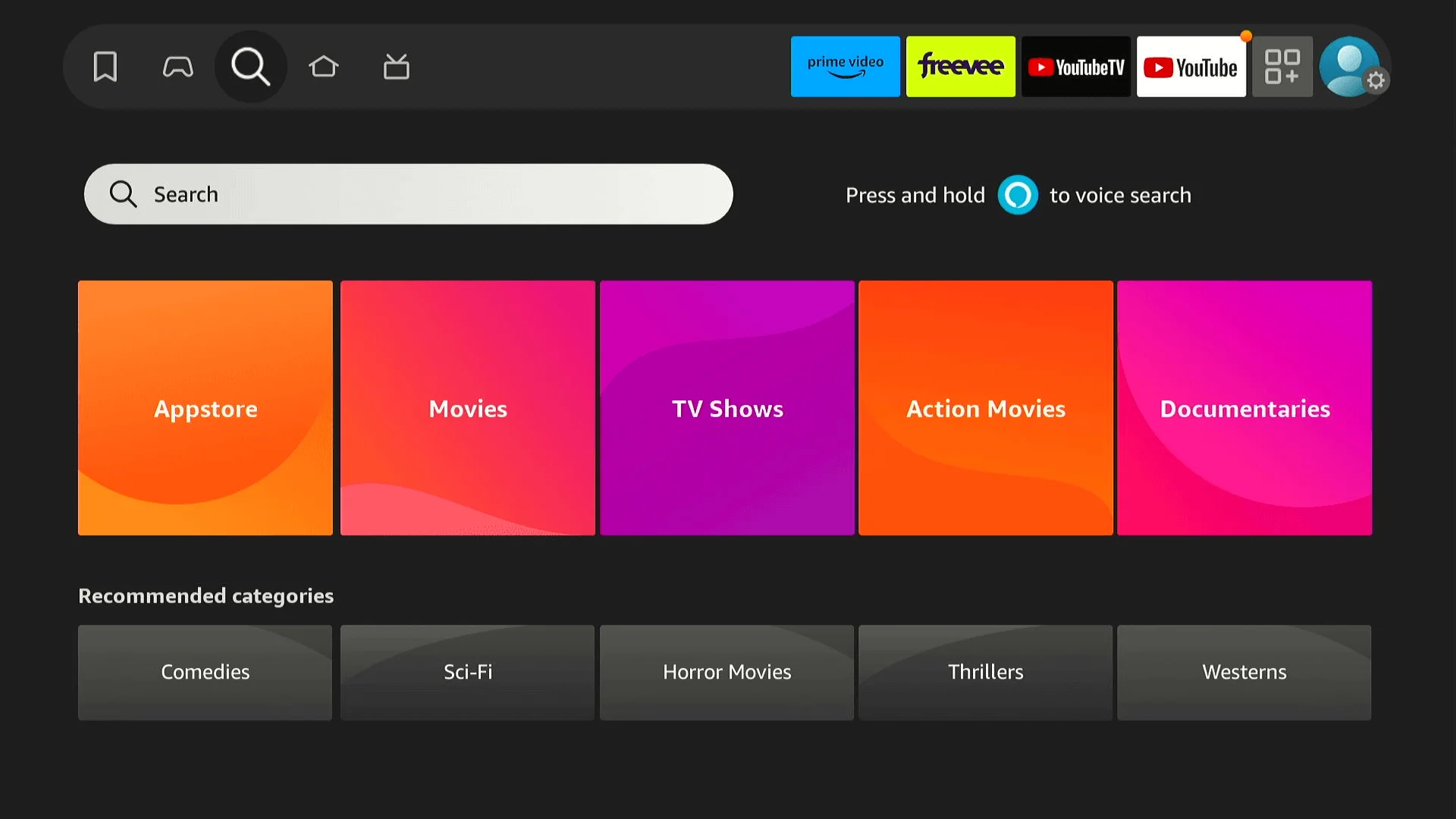
- From the Home screen, click the Search icon.
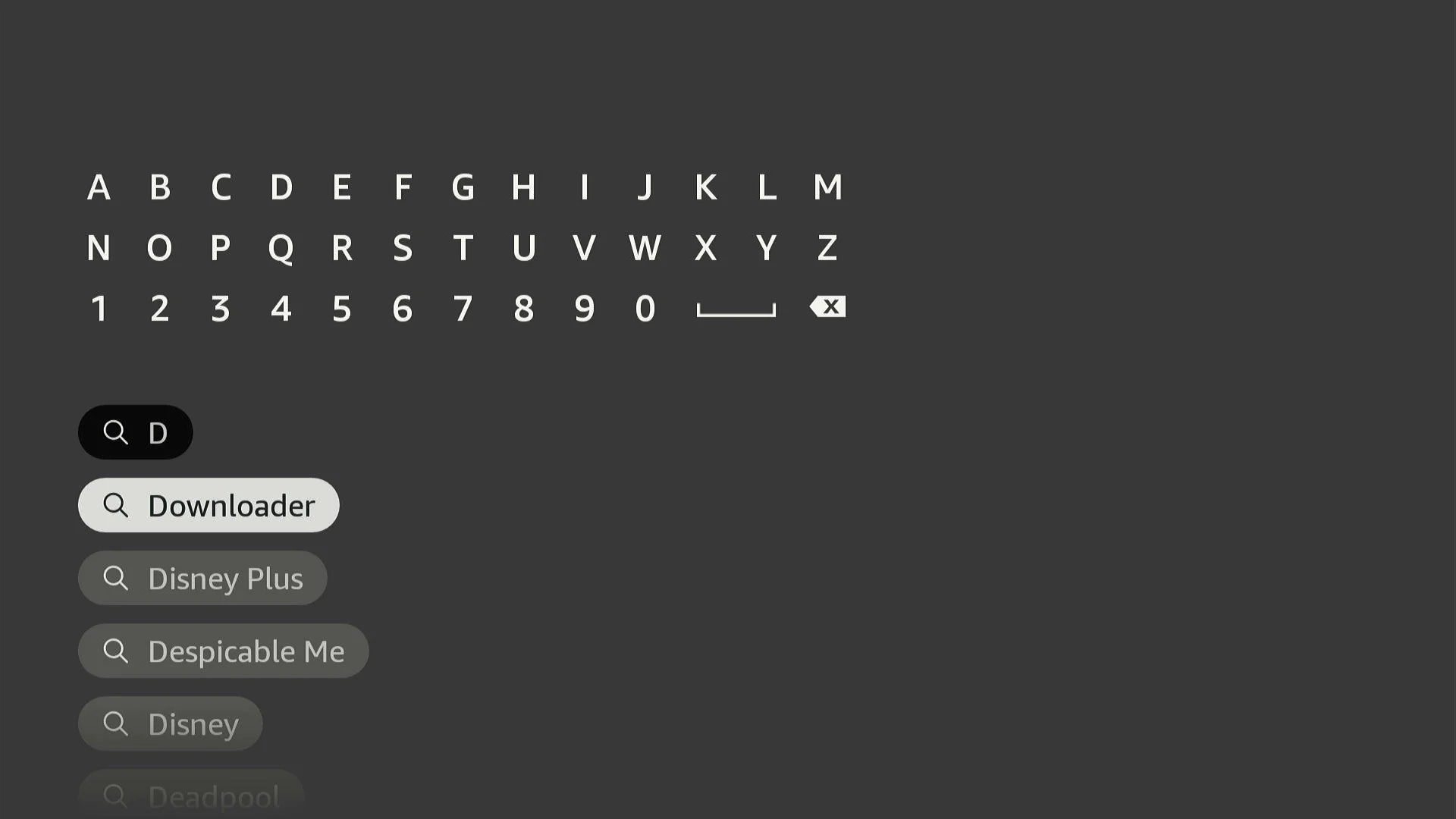
- Type Downloader and select it from the list.
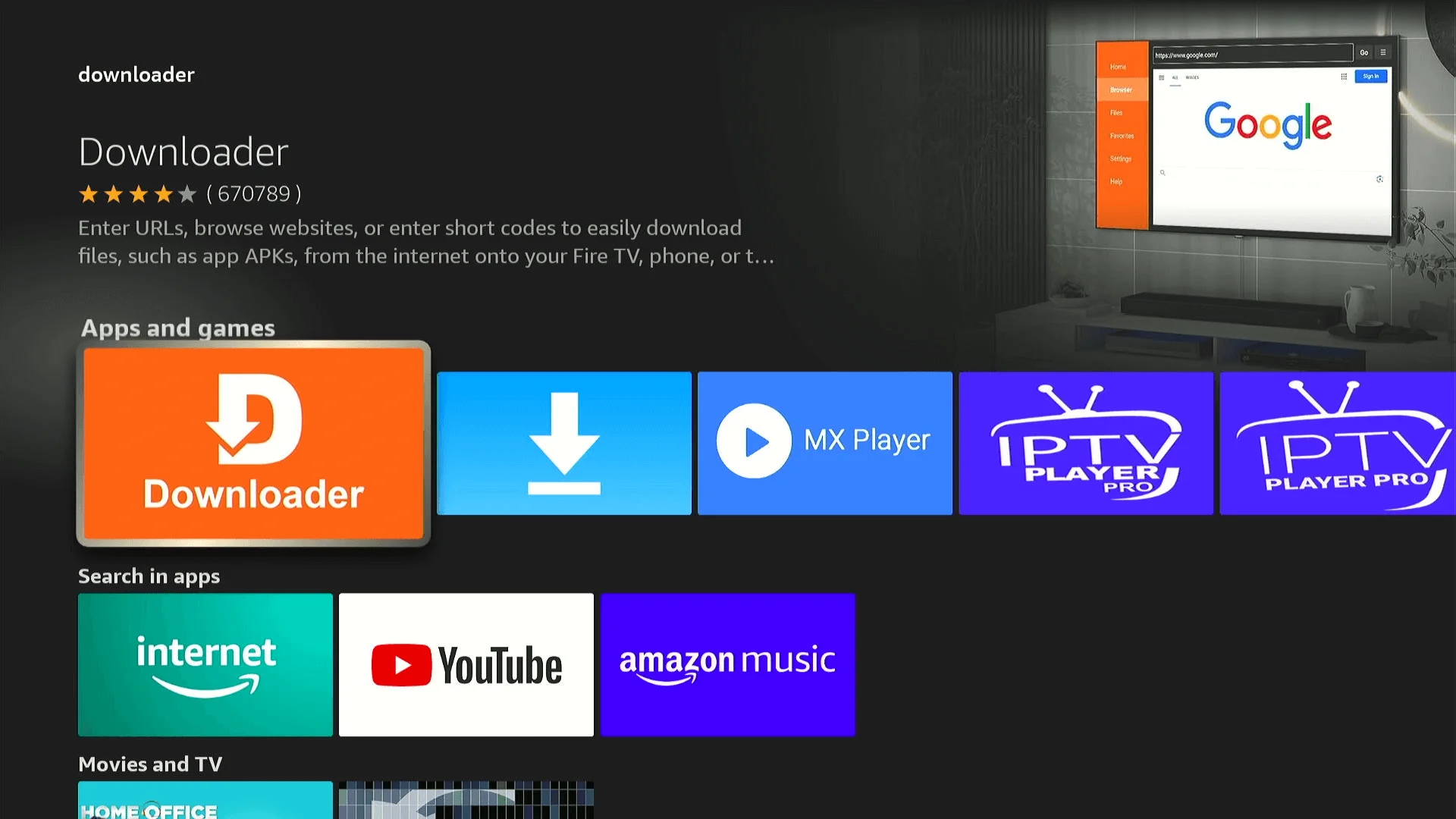
- Select the Downloader icon.
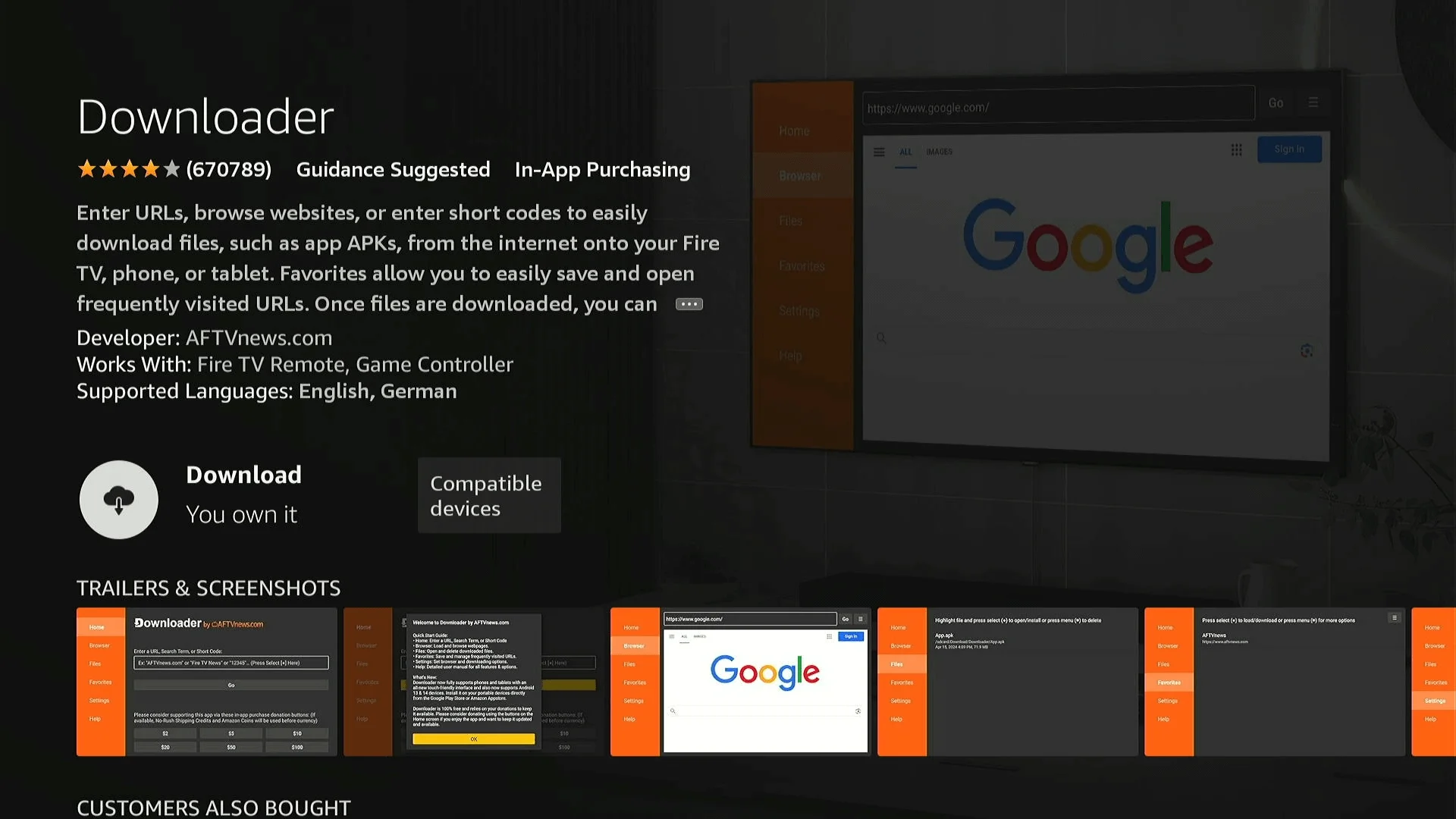
- Click Download or Get to install.
Step 2: Enable Third-Party App Support
We need to allow the device to install the player:
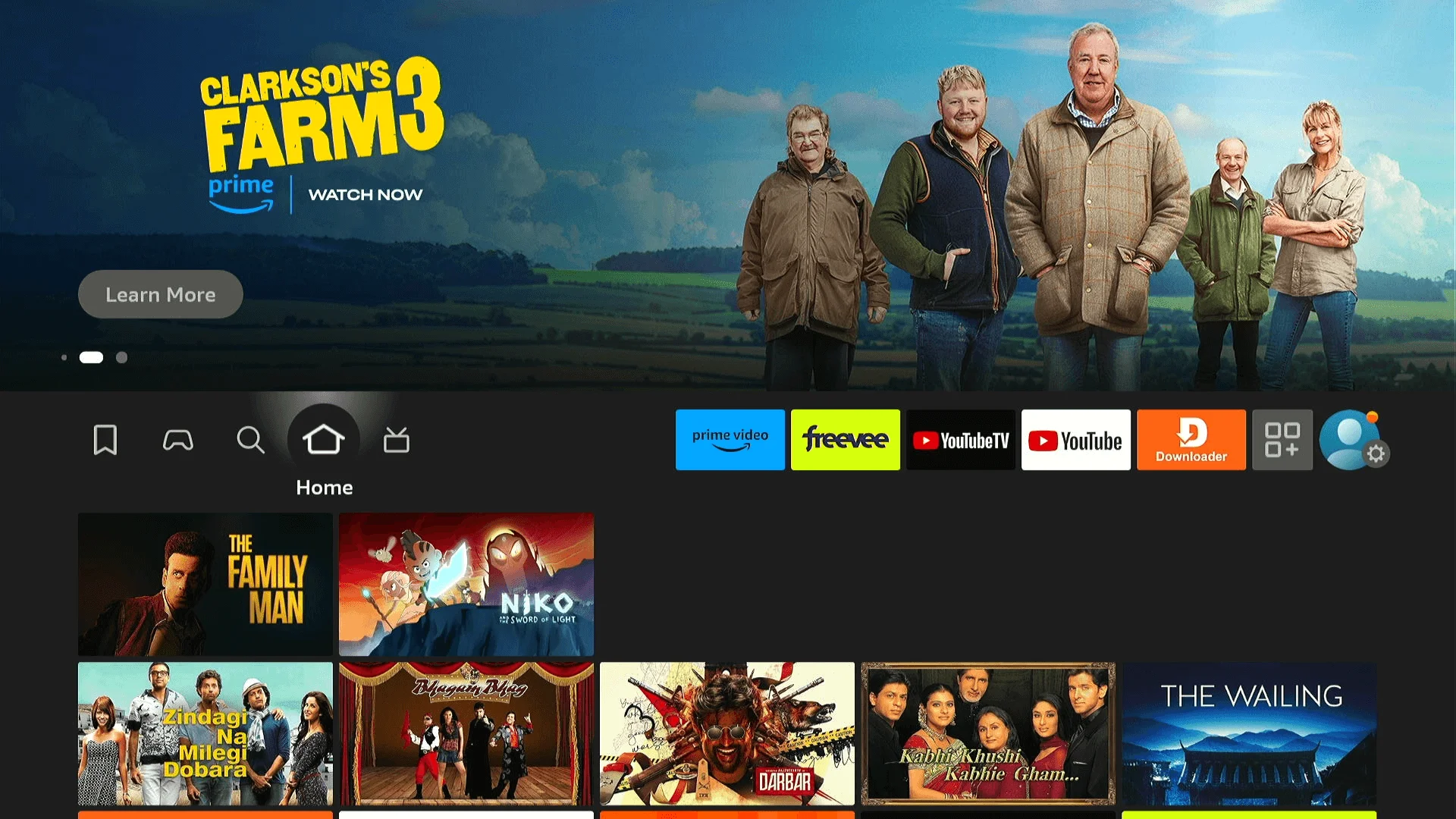
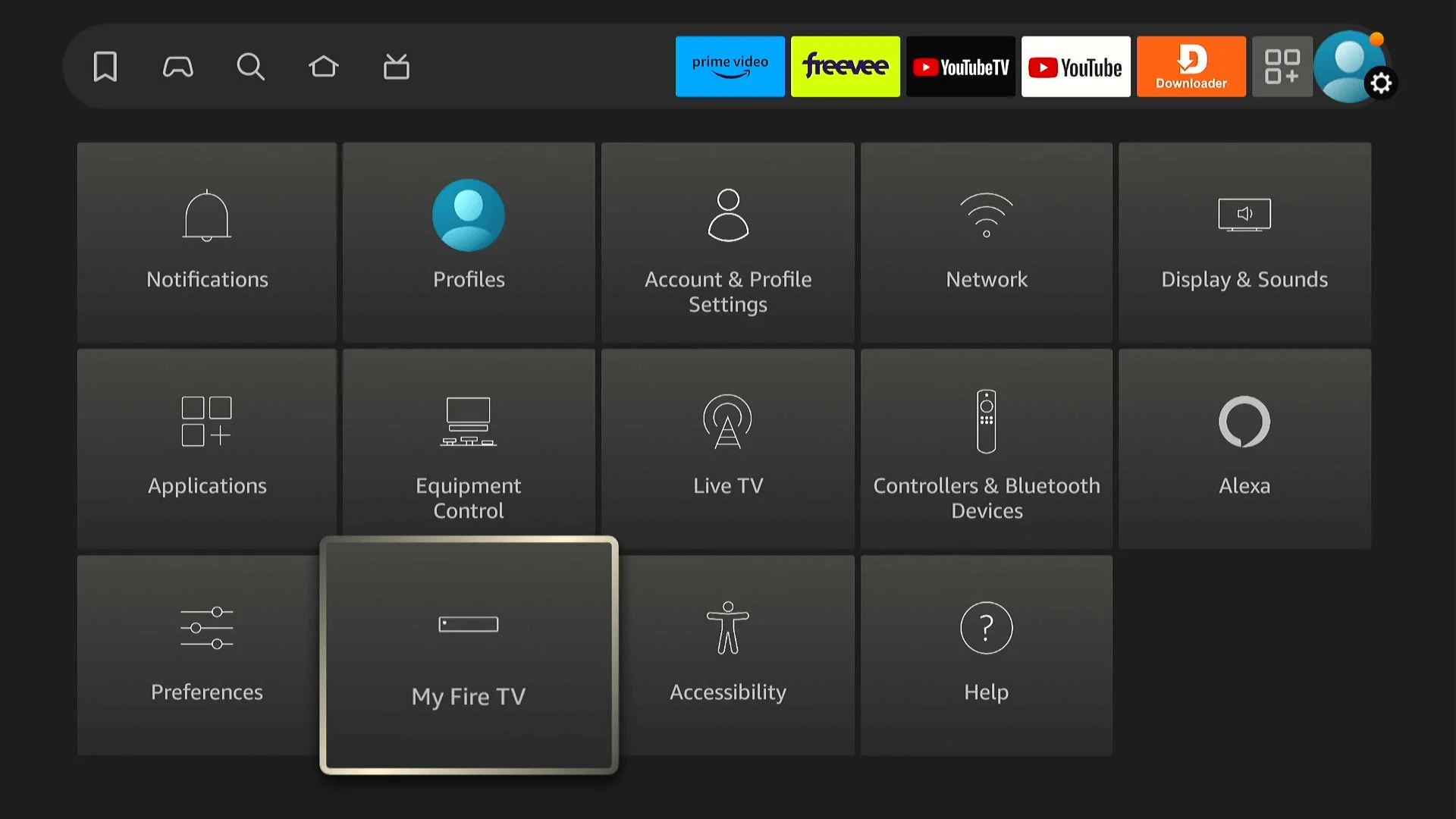
- Return to Home and go to Settings.
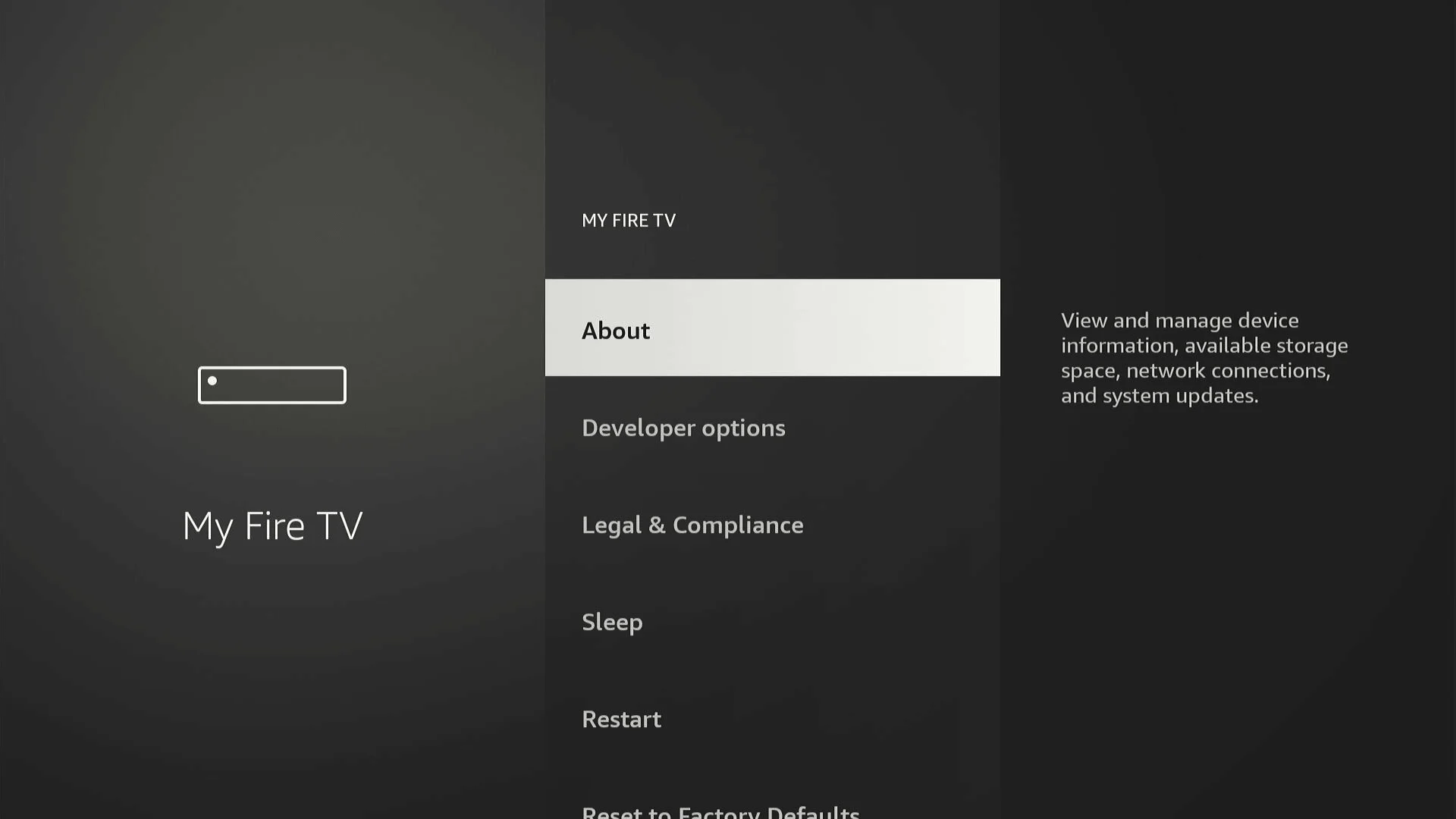
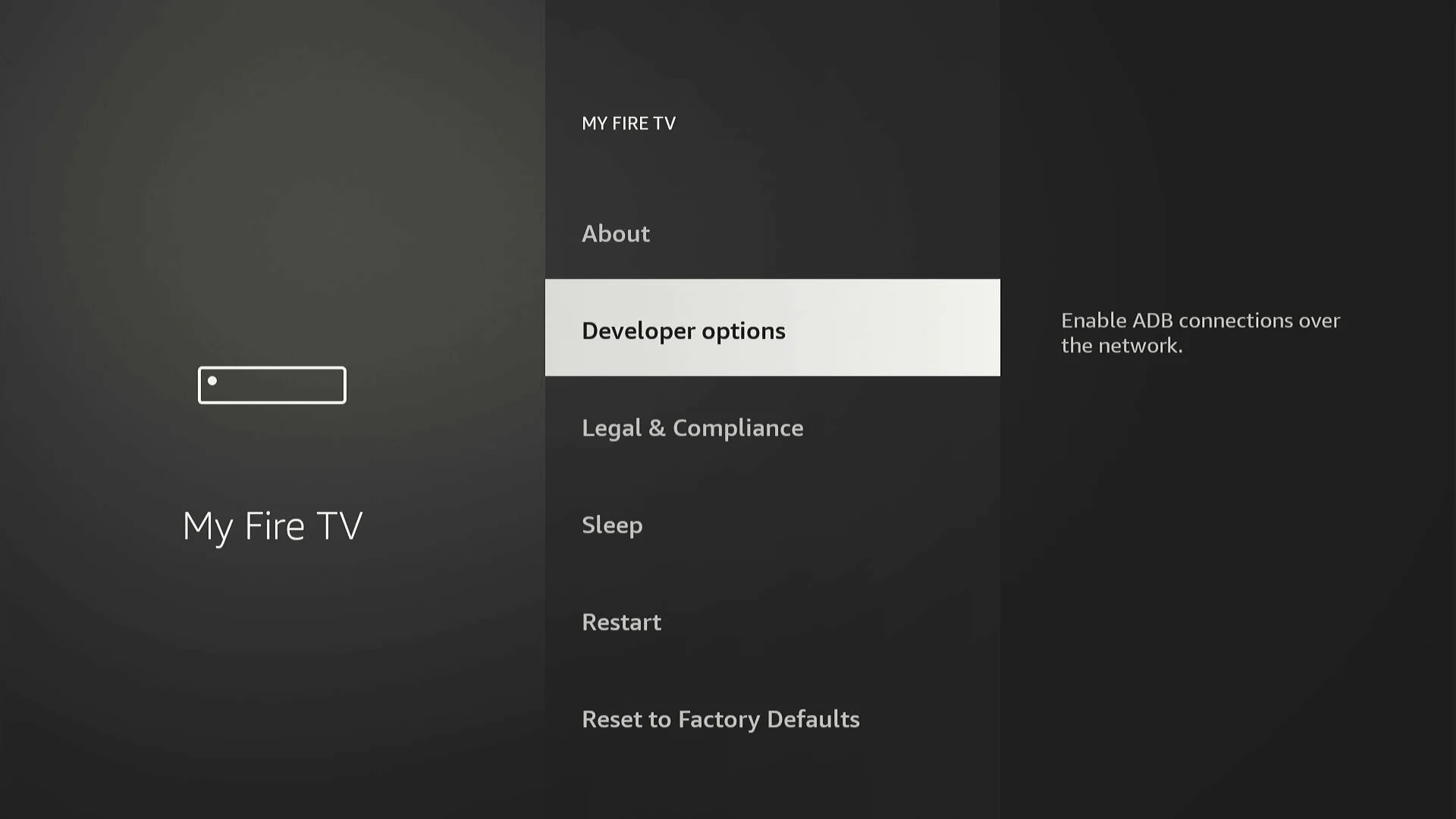
- Select My Fire TV (or Device Preferences).
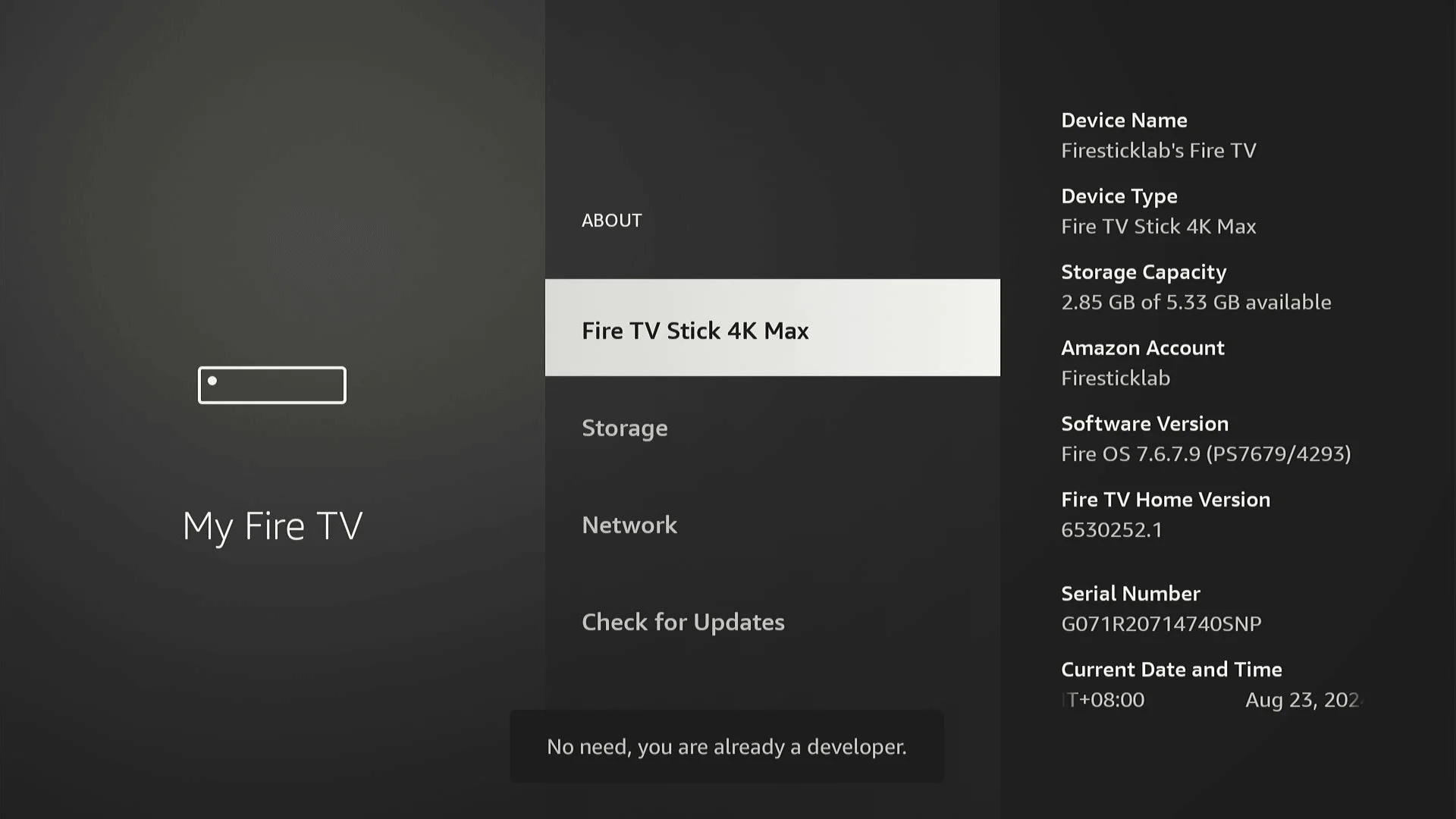
- Select About.
- Highlight the device name and click the select button 7 times to unlock Developer Options.
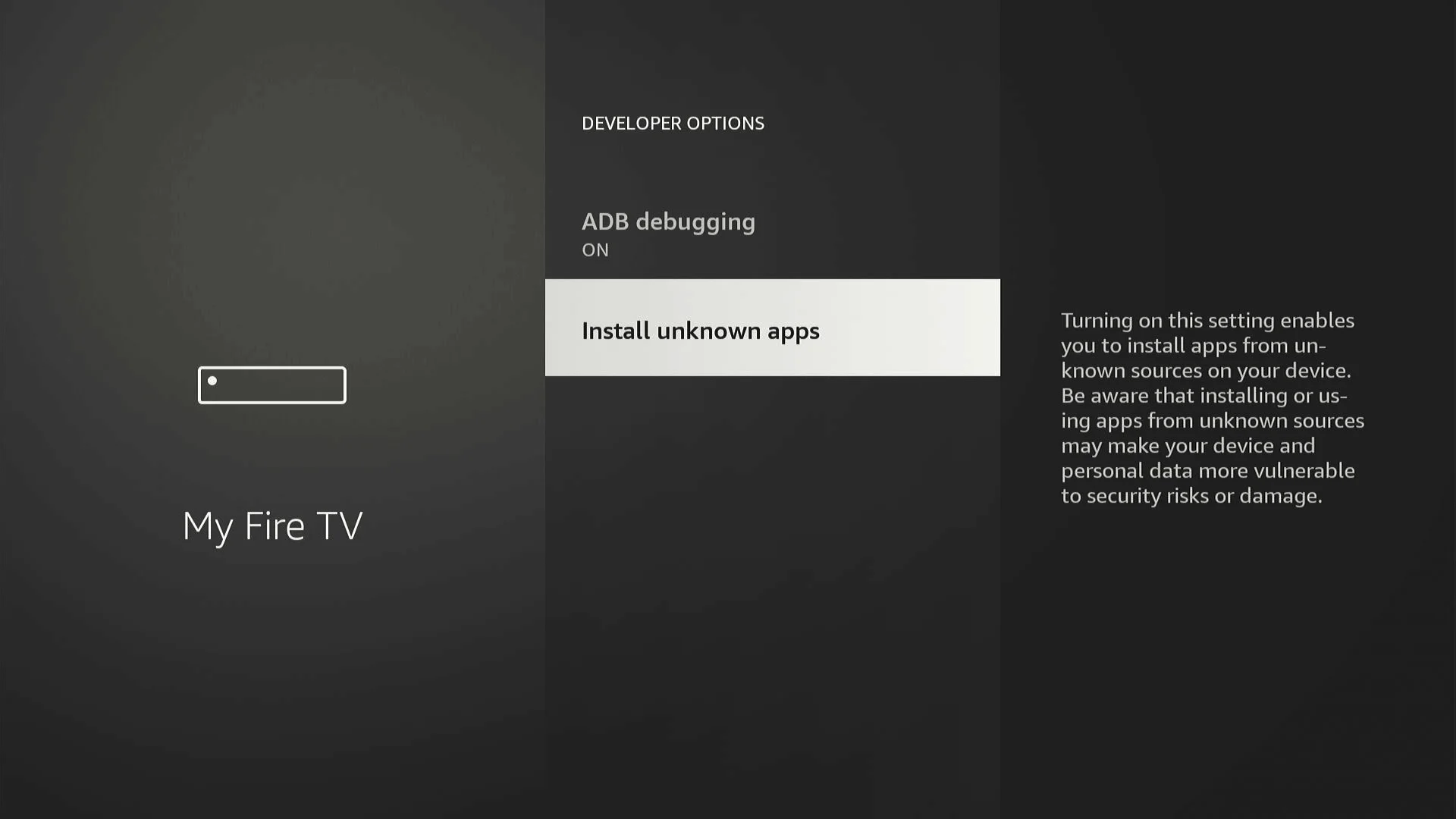
- Press back and select Developer Options.
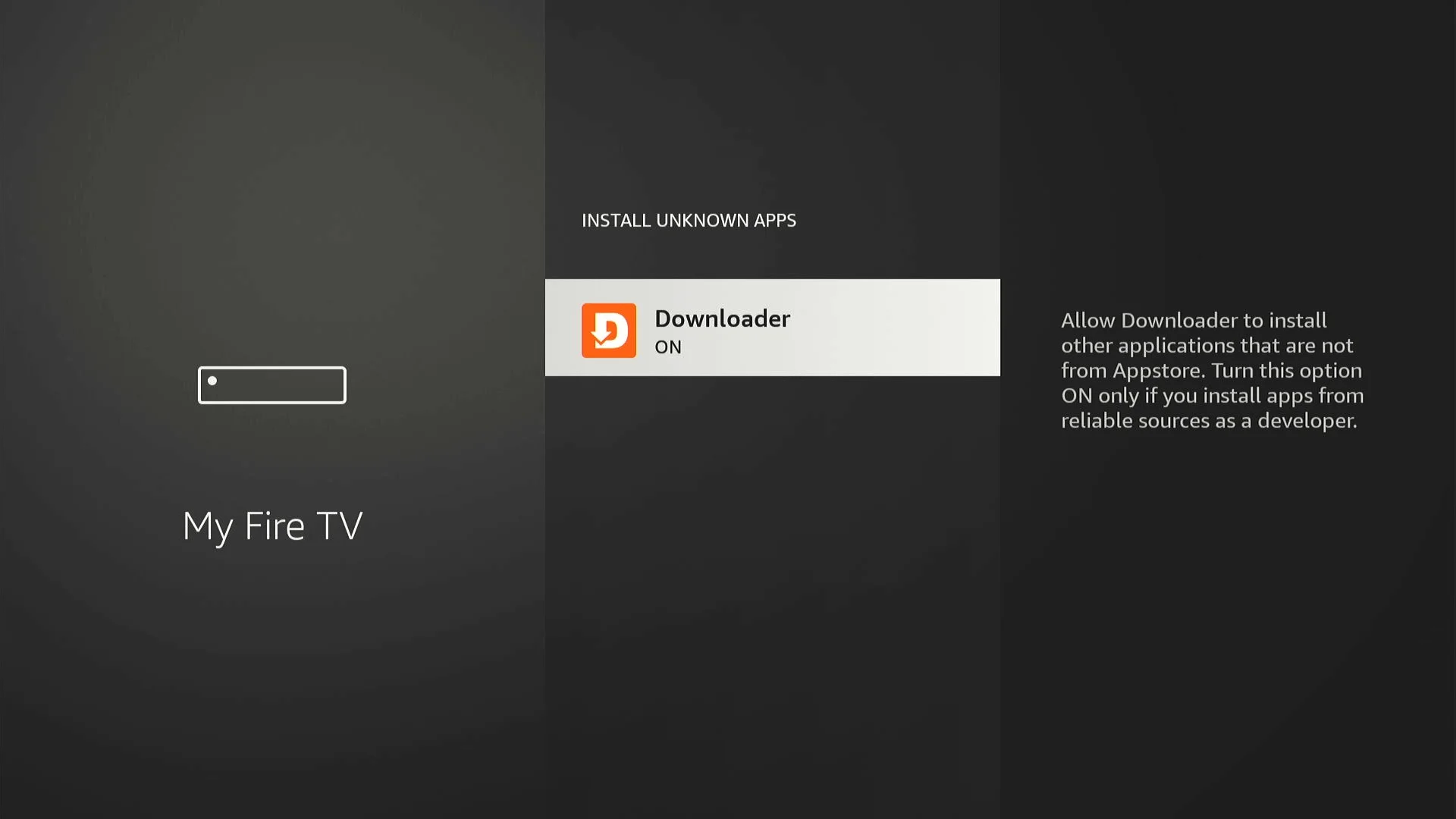
- Select Install Unknown Apps.
- Turn ON for Downloader.
Step 3: Download the Player
Now launch the Downloader app.
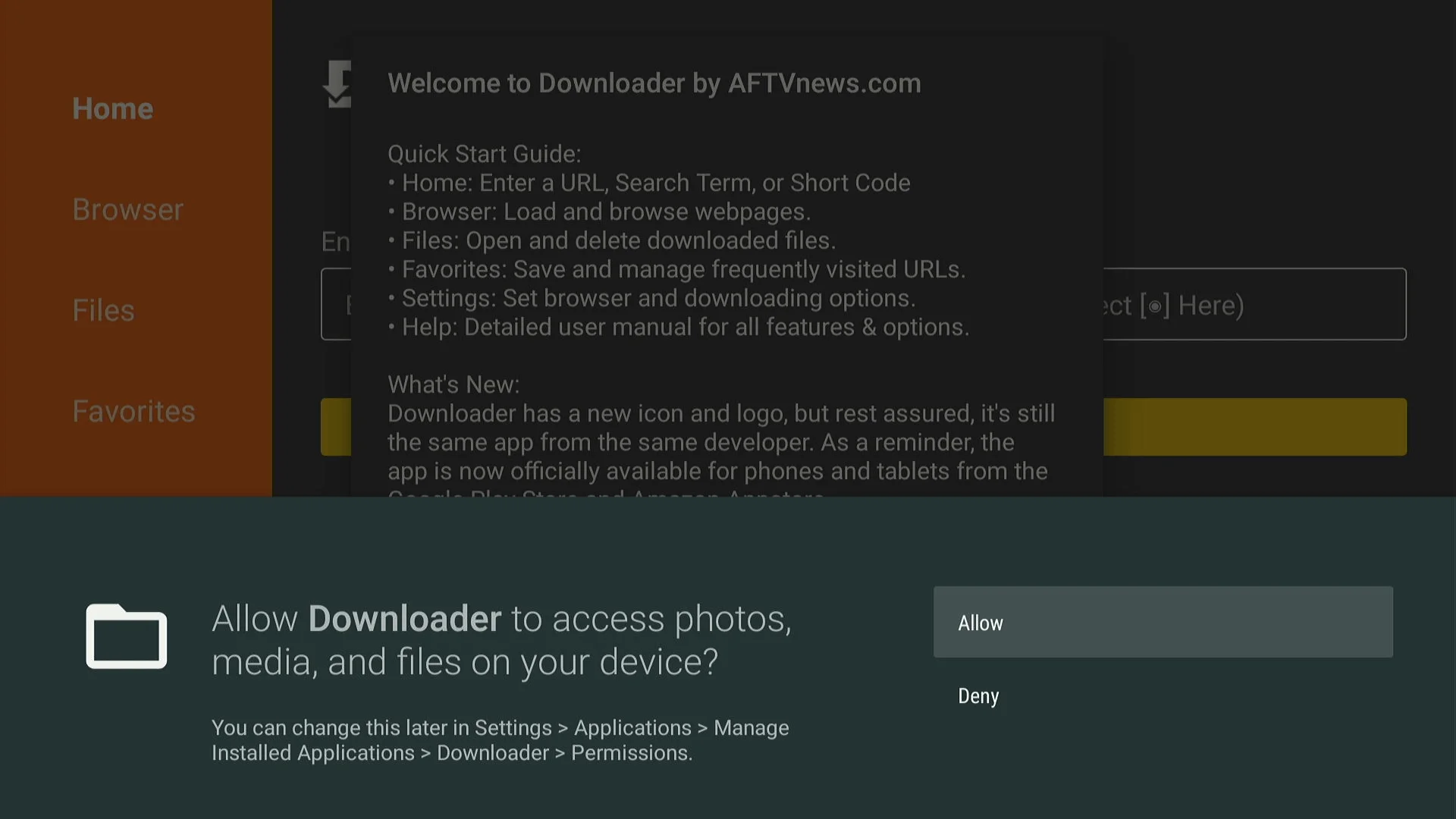
- Open Downloader and allow permissions.
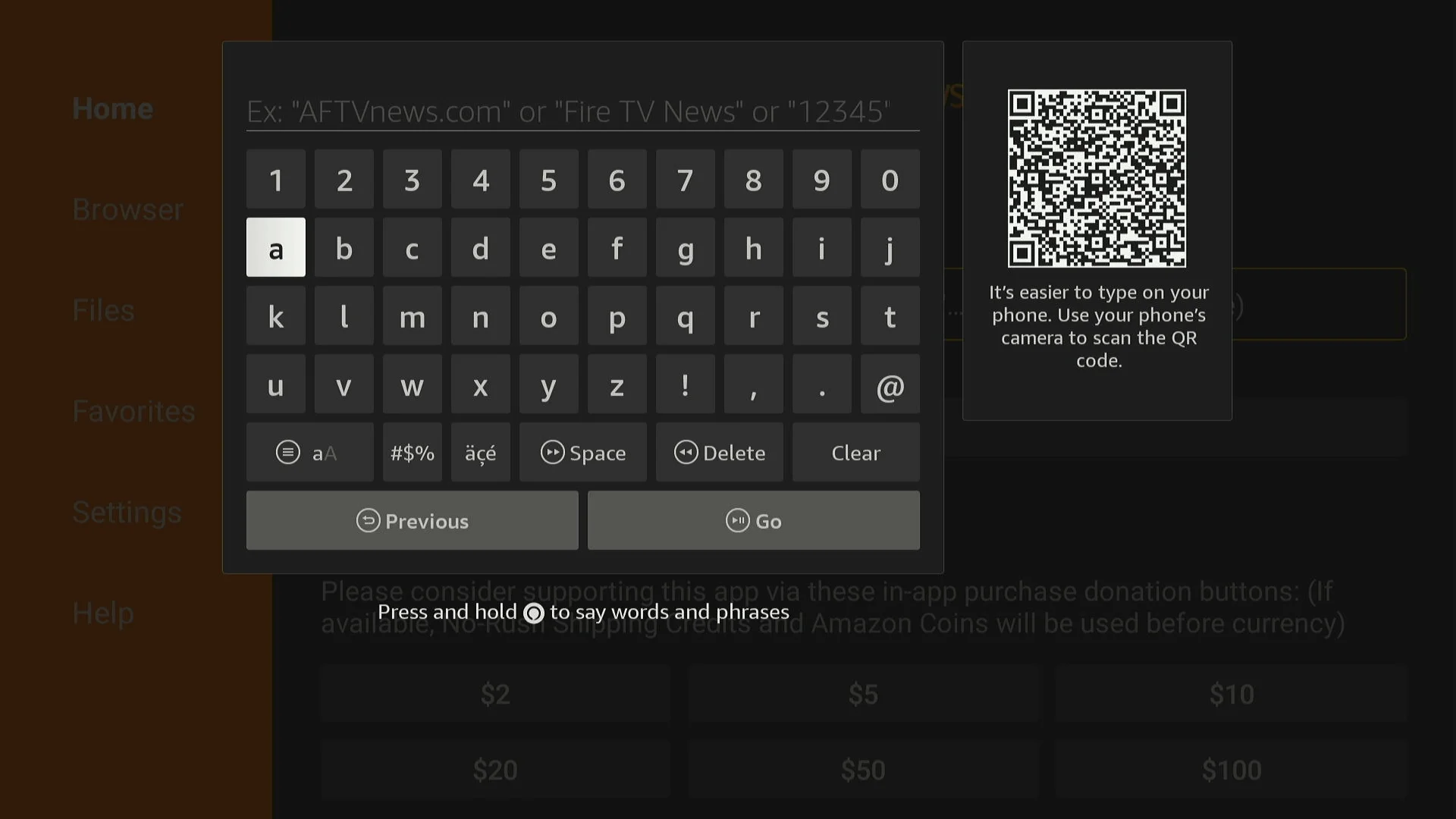
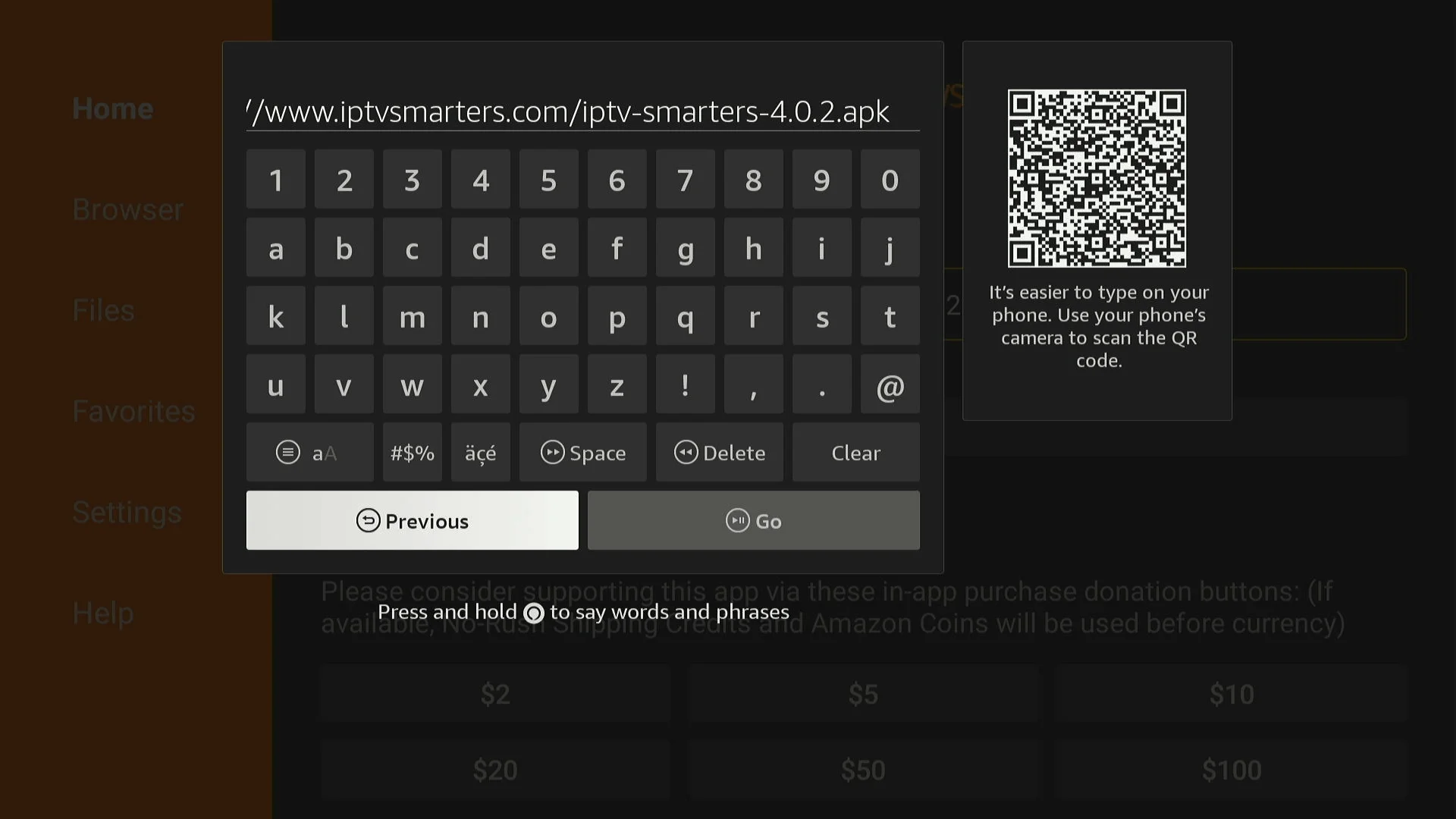
- Click the URL bar.
- Enter the official download code or URL: iptvsmarters.com/iptv-smarters-5.0.apk Downloader Code: 6468112
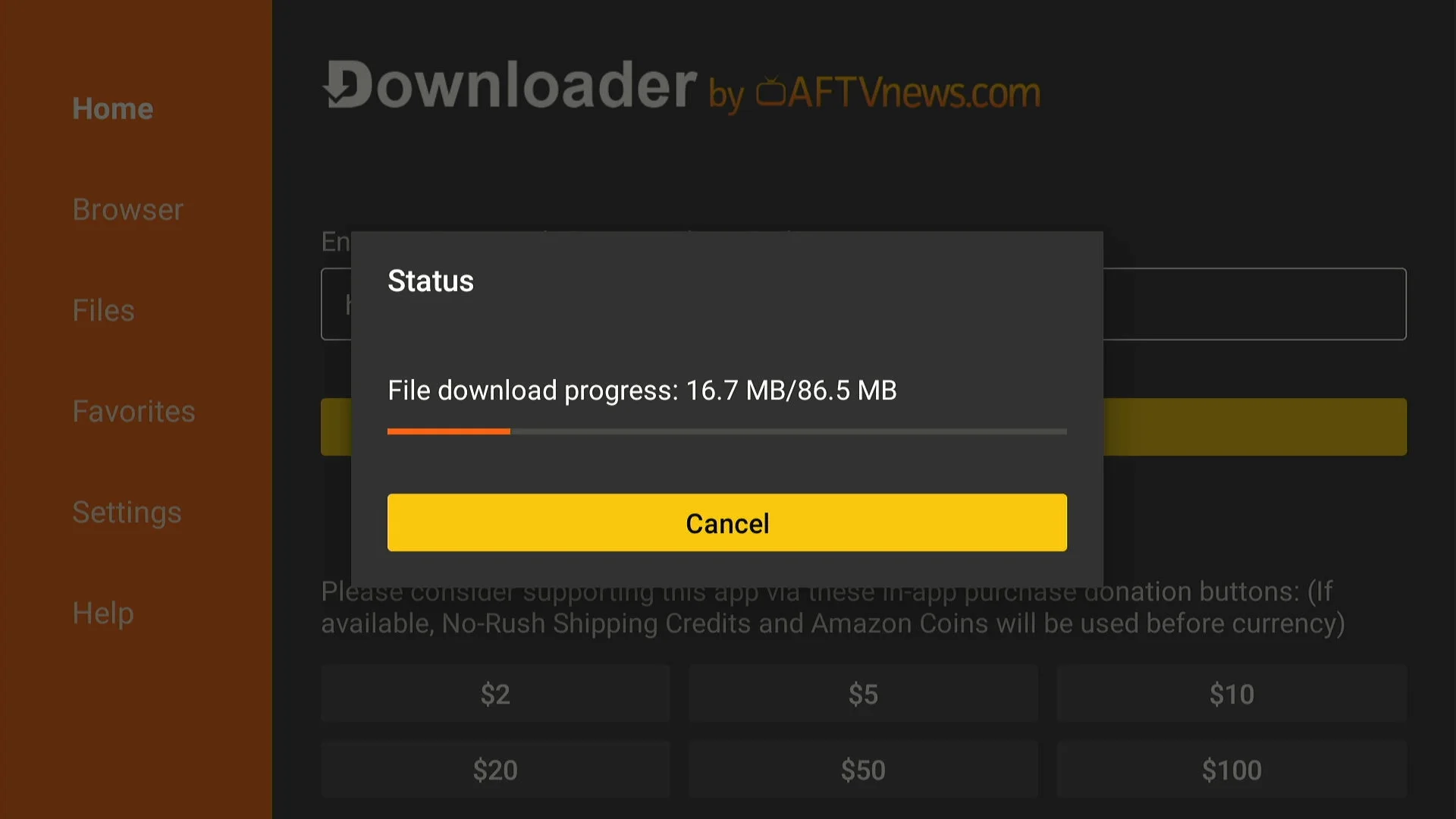
- Click Go and wait for the file to download.
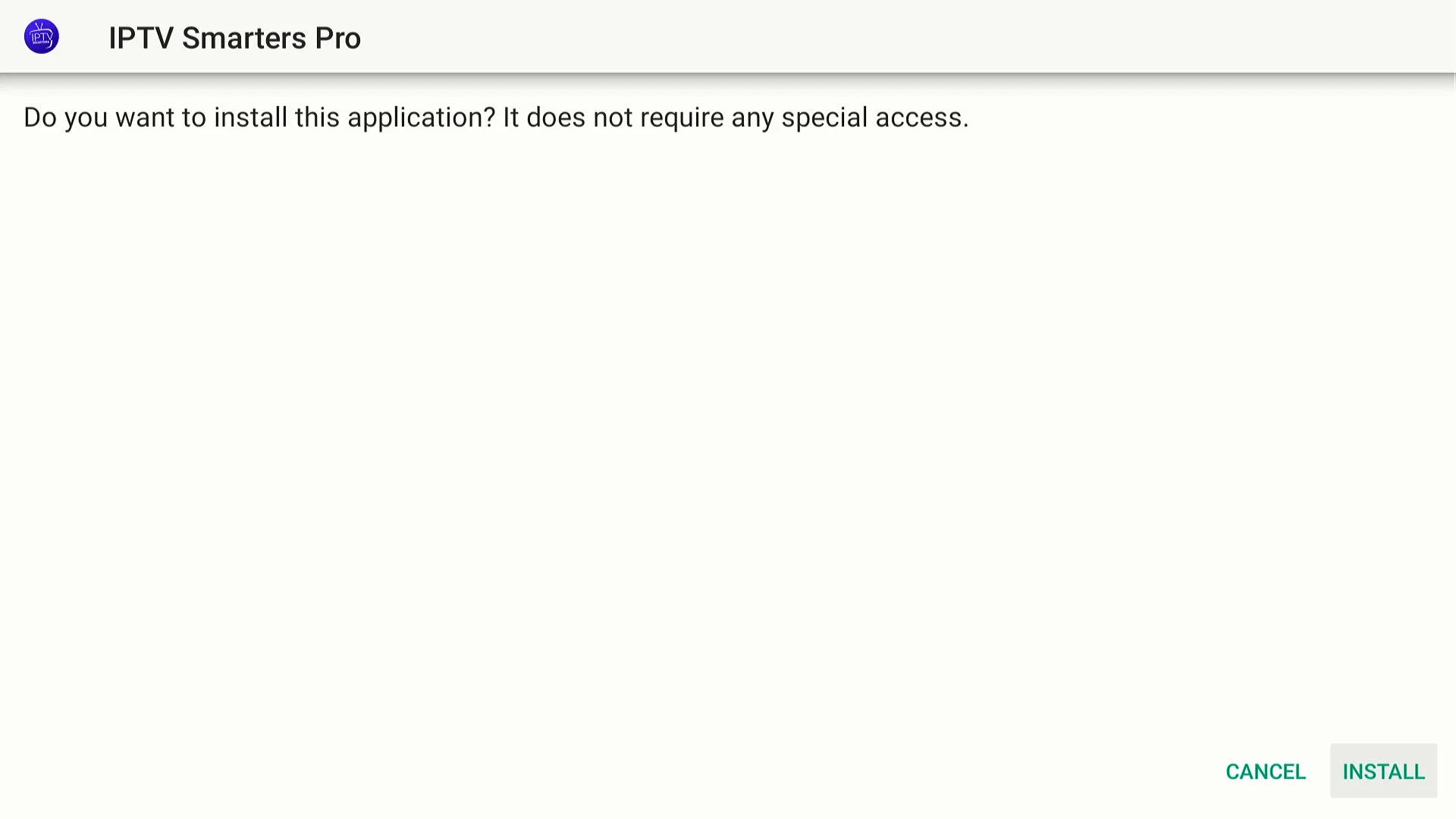
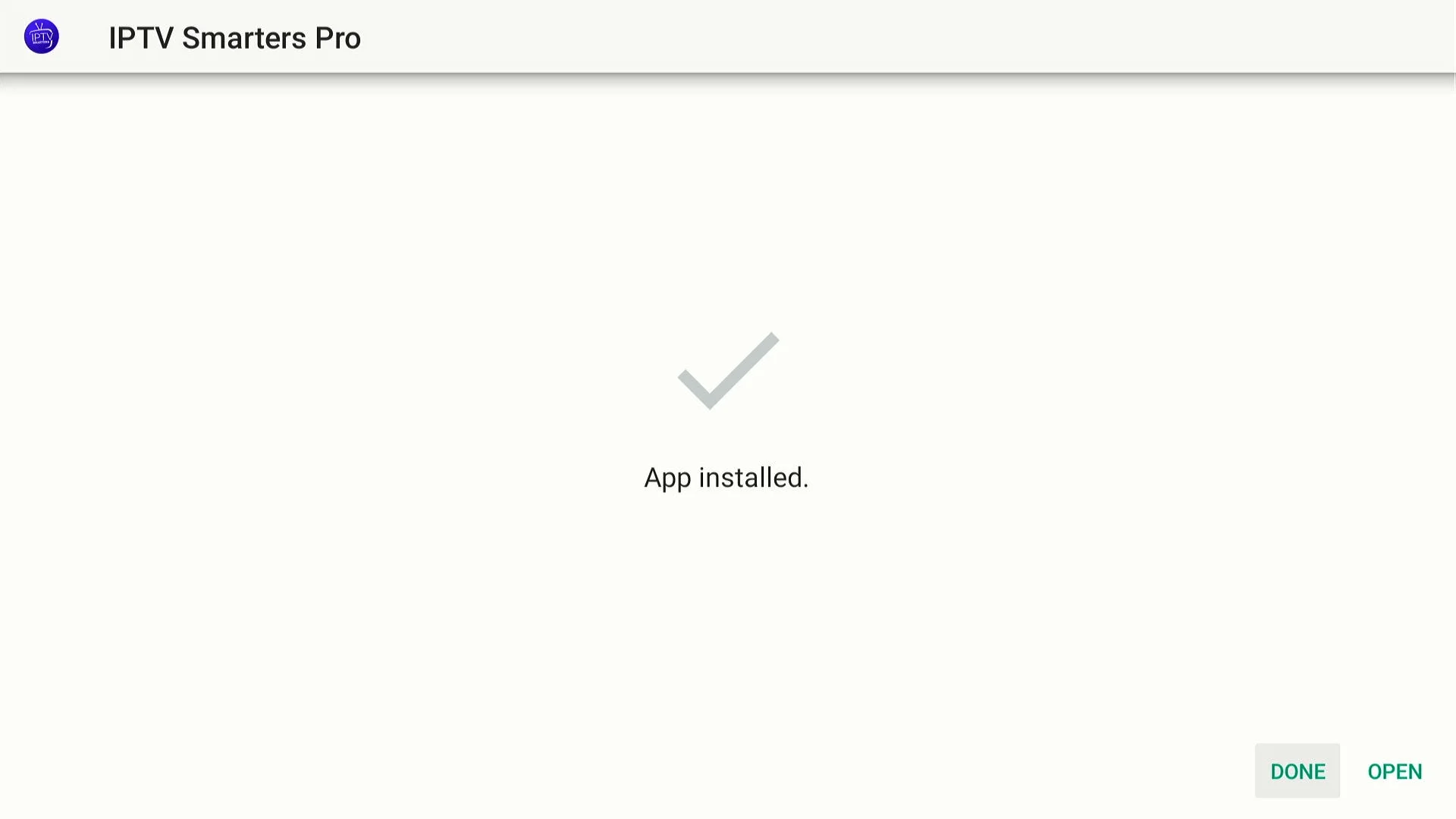
- Click Install when prompted.
- Click Done.
Step 4: Configure Pulse TV
Connect your account to the player:
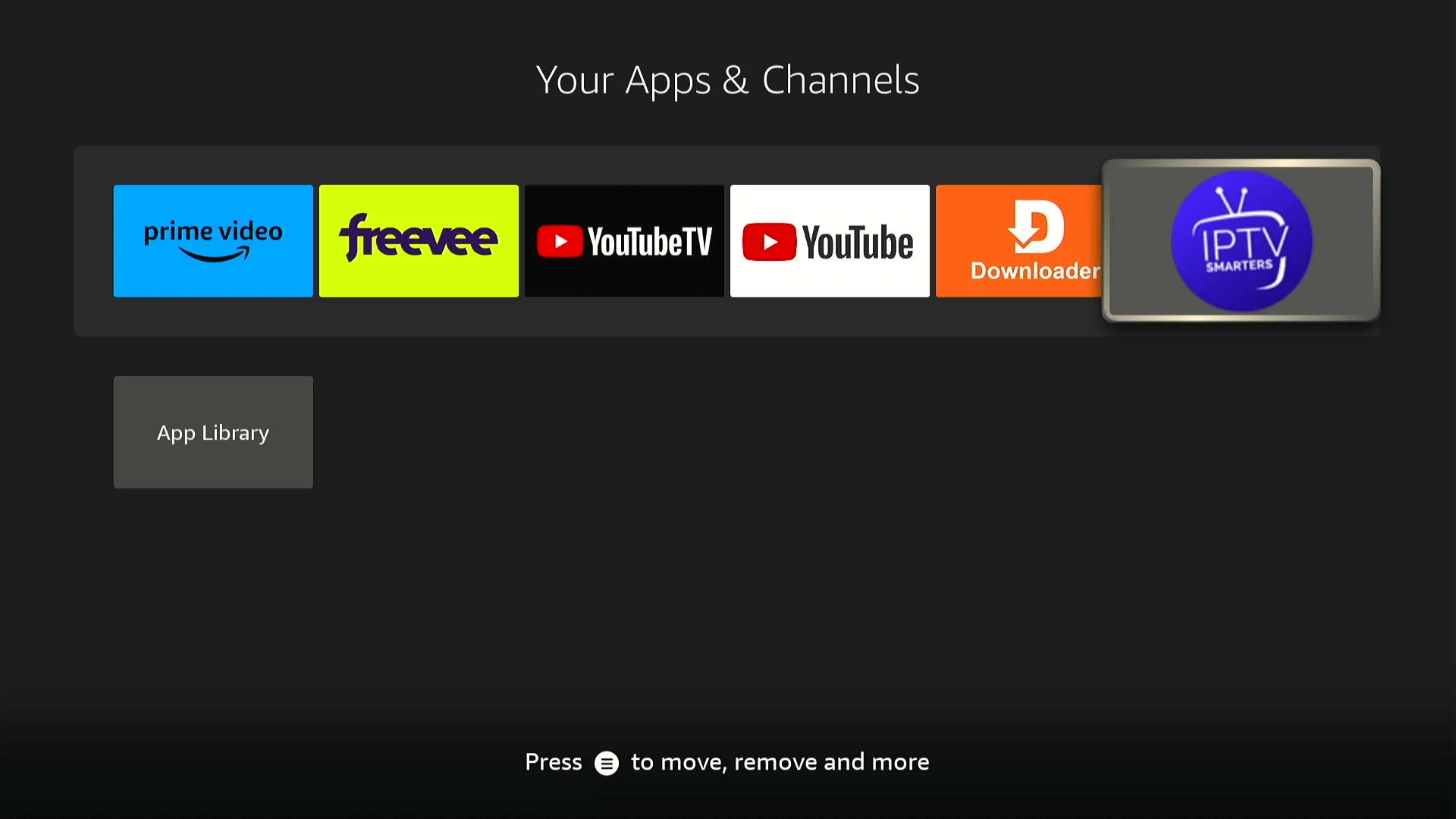
- Open Smarters Player.
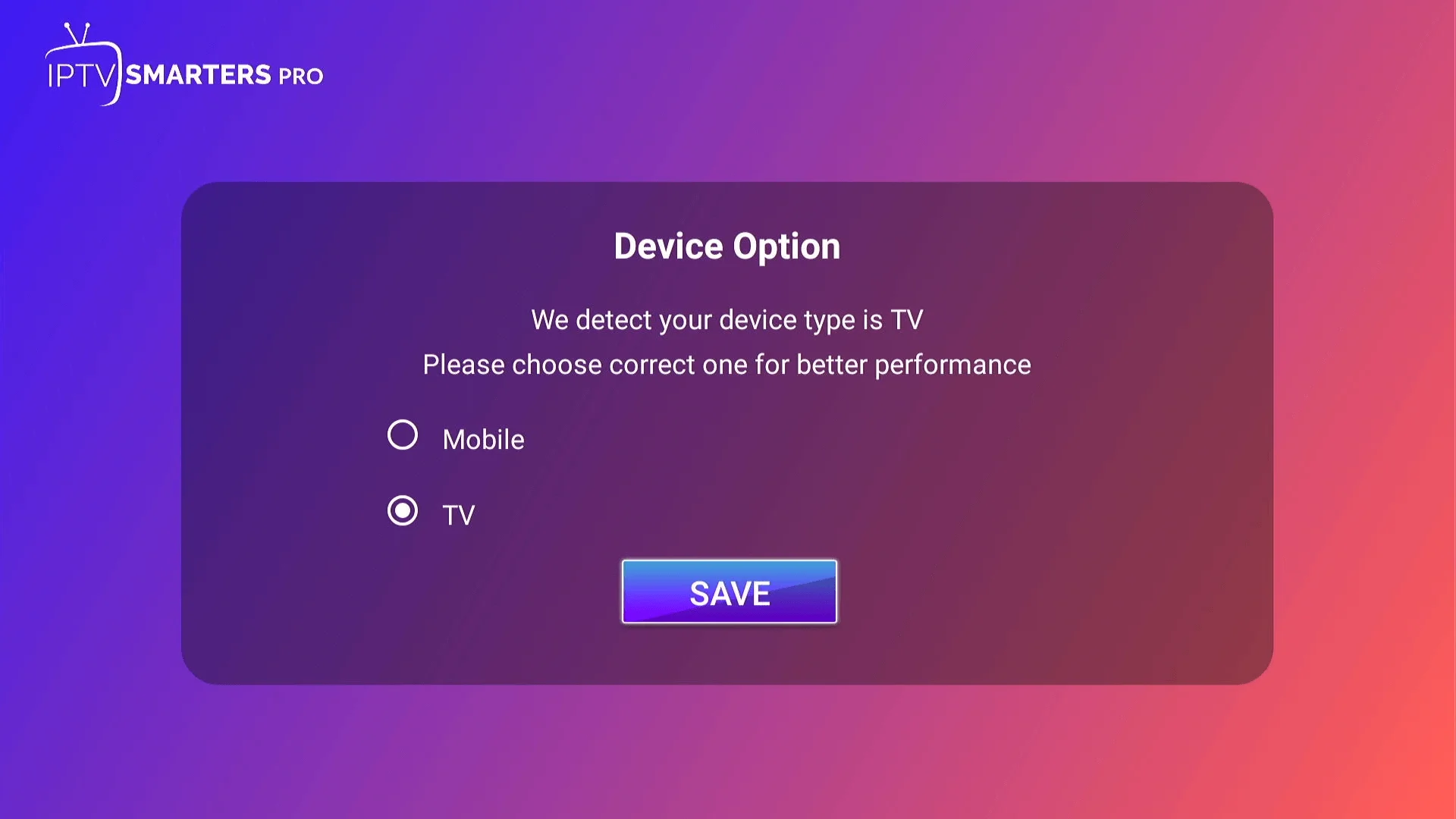
- Select TV and click Save.
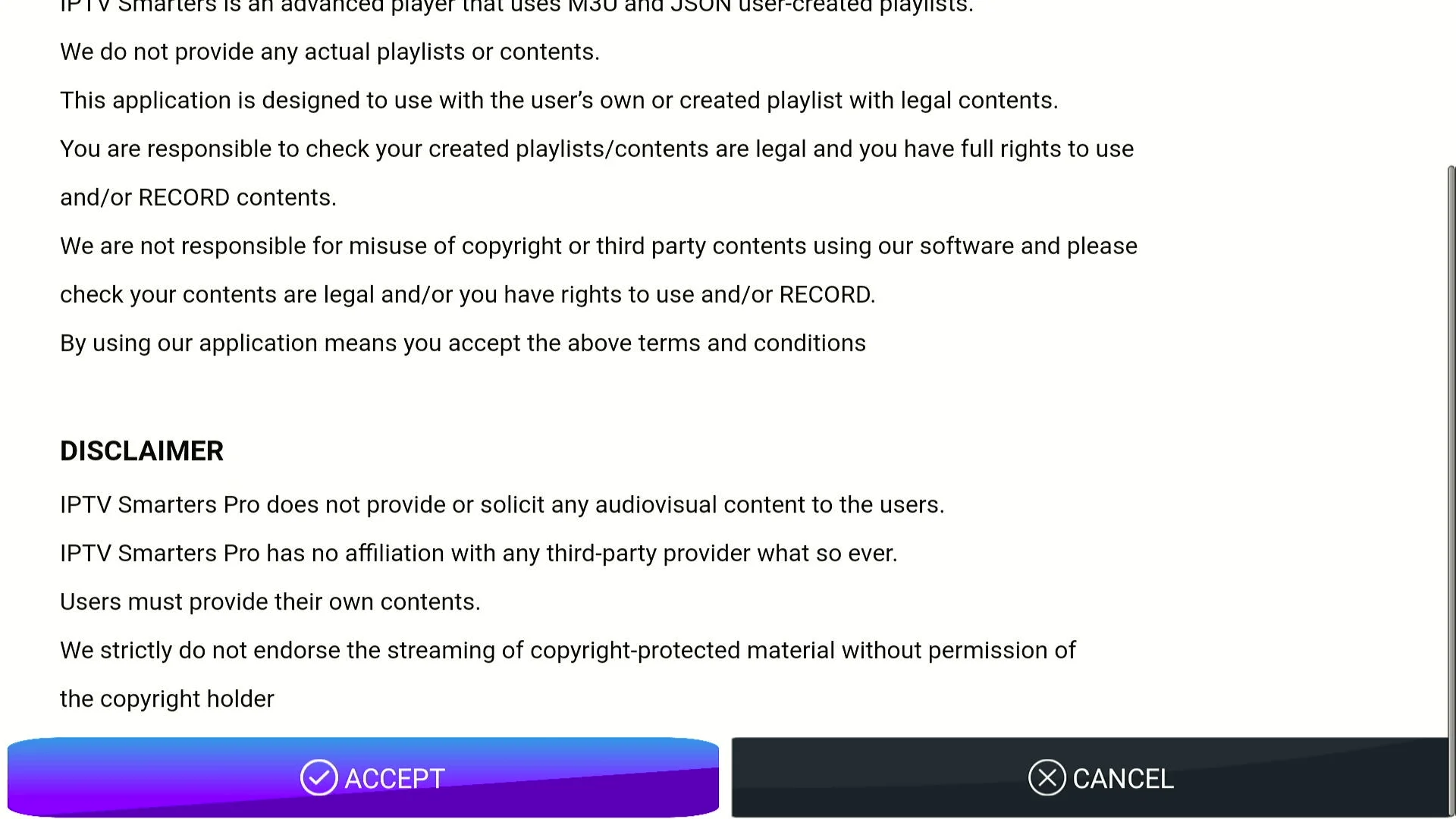
- Accept the Terms.
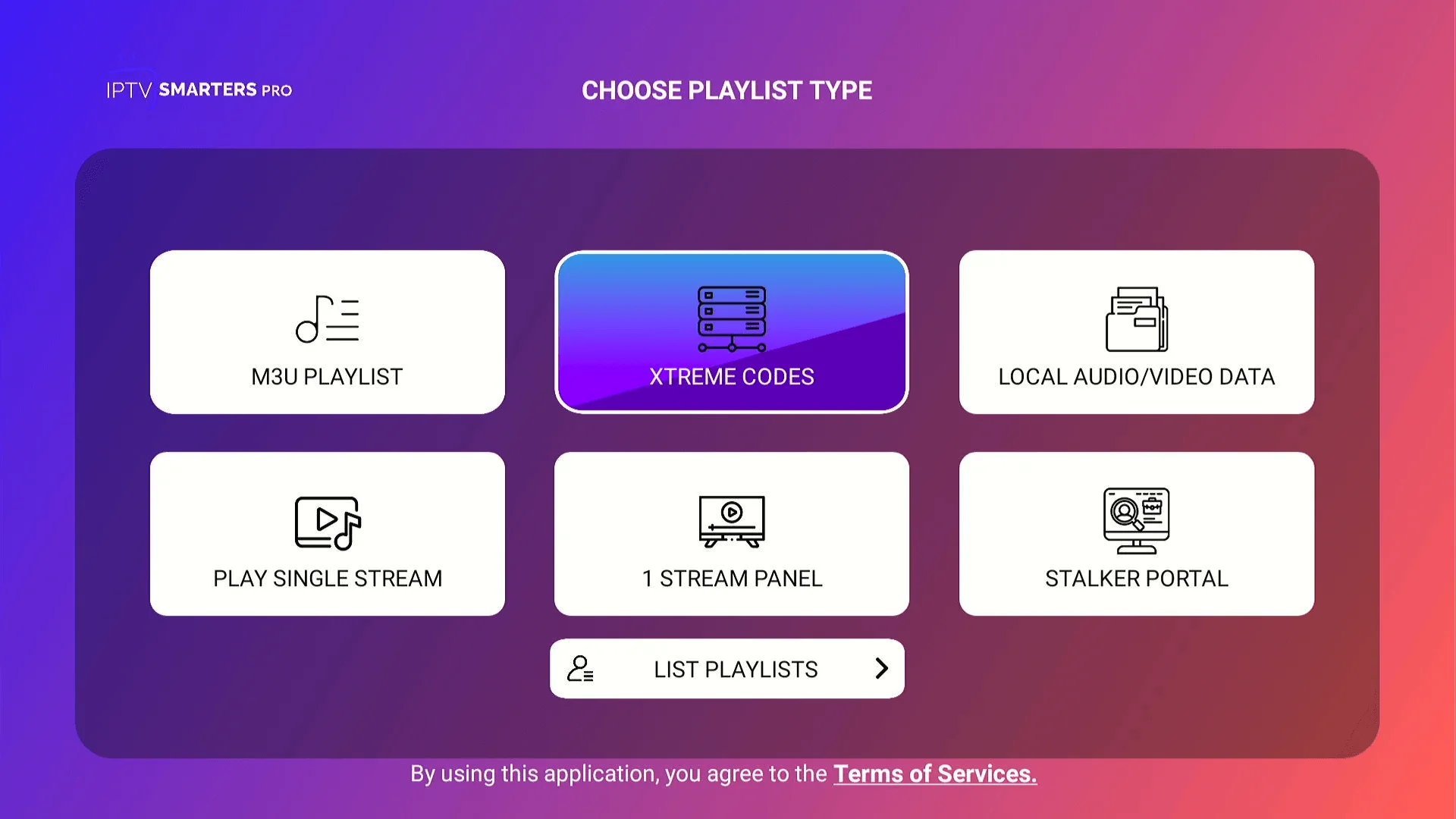
- Select Login with API.
- Enter your Pulse TV credentials: Username, Password, and Server URL (found in your welcome email).
- Click Add User and wait for your content to sync.
Step 5: Sync Content
Finalizing your setup:
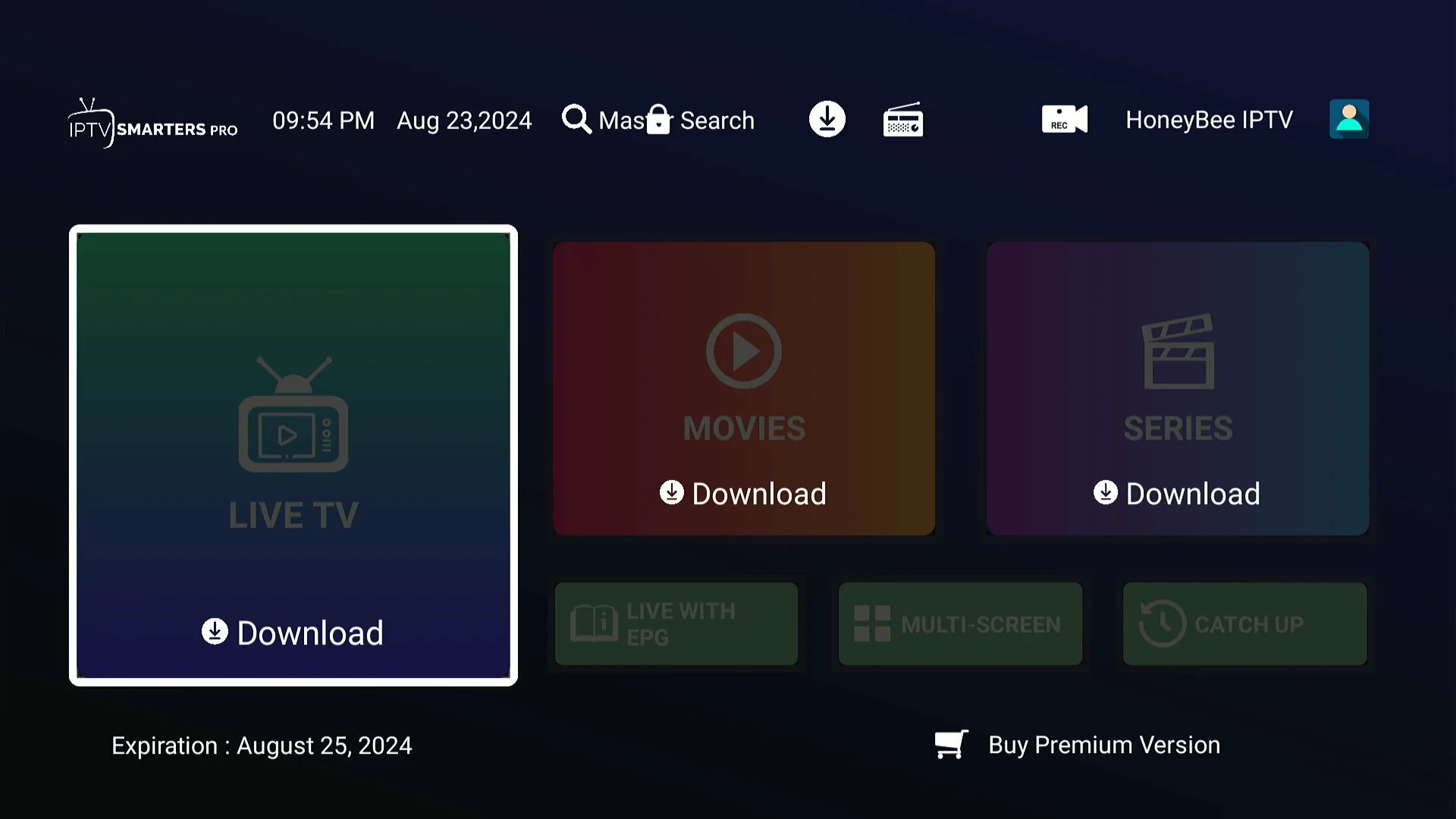
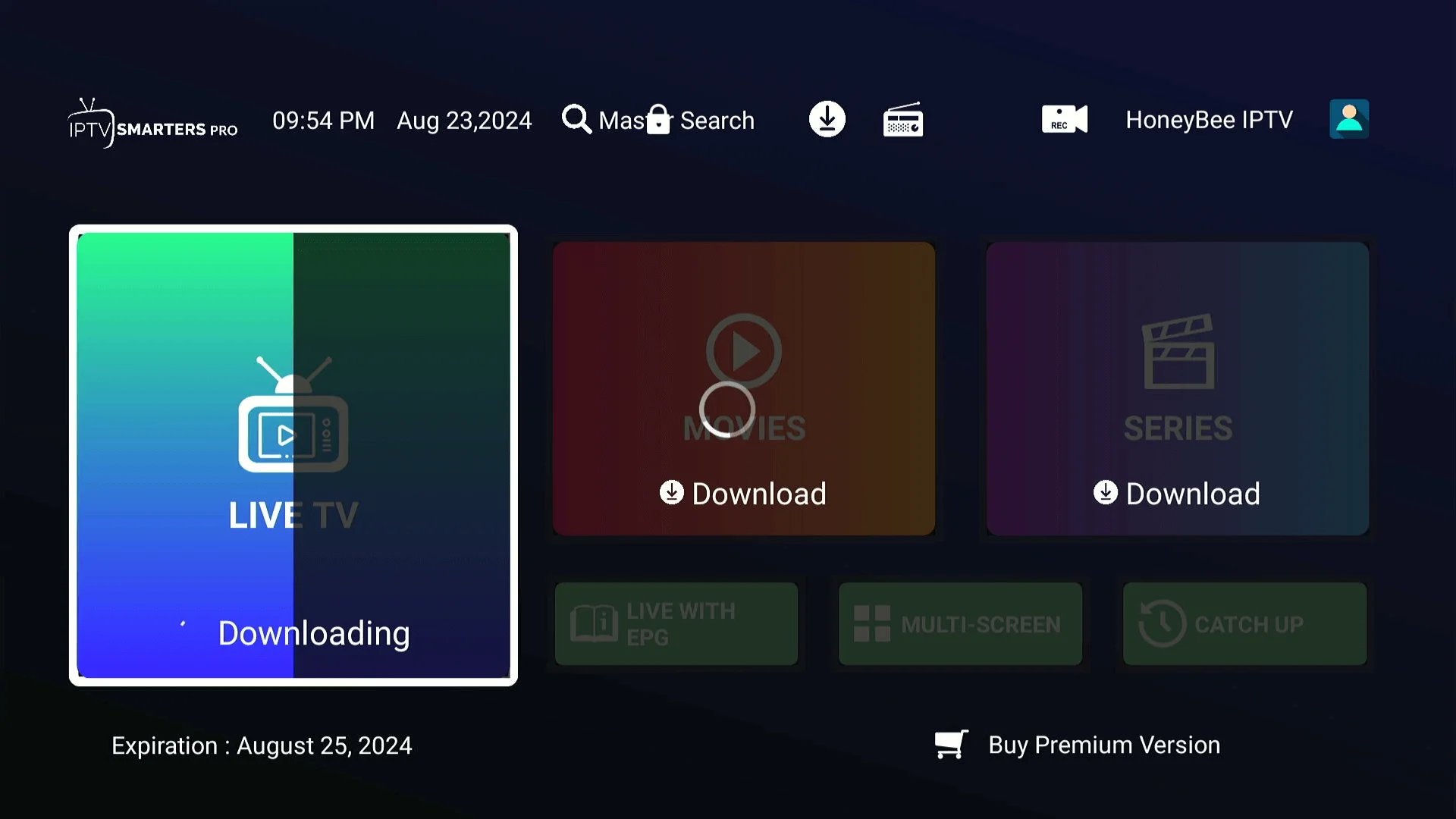
- Click Live TV to download the channel list.
- Click Movies & Series to sync the VOD library.
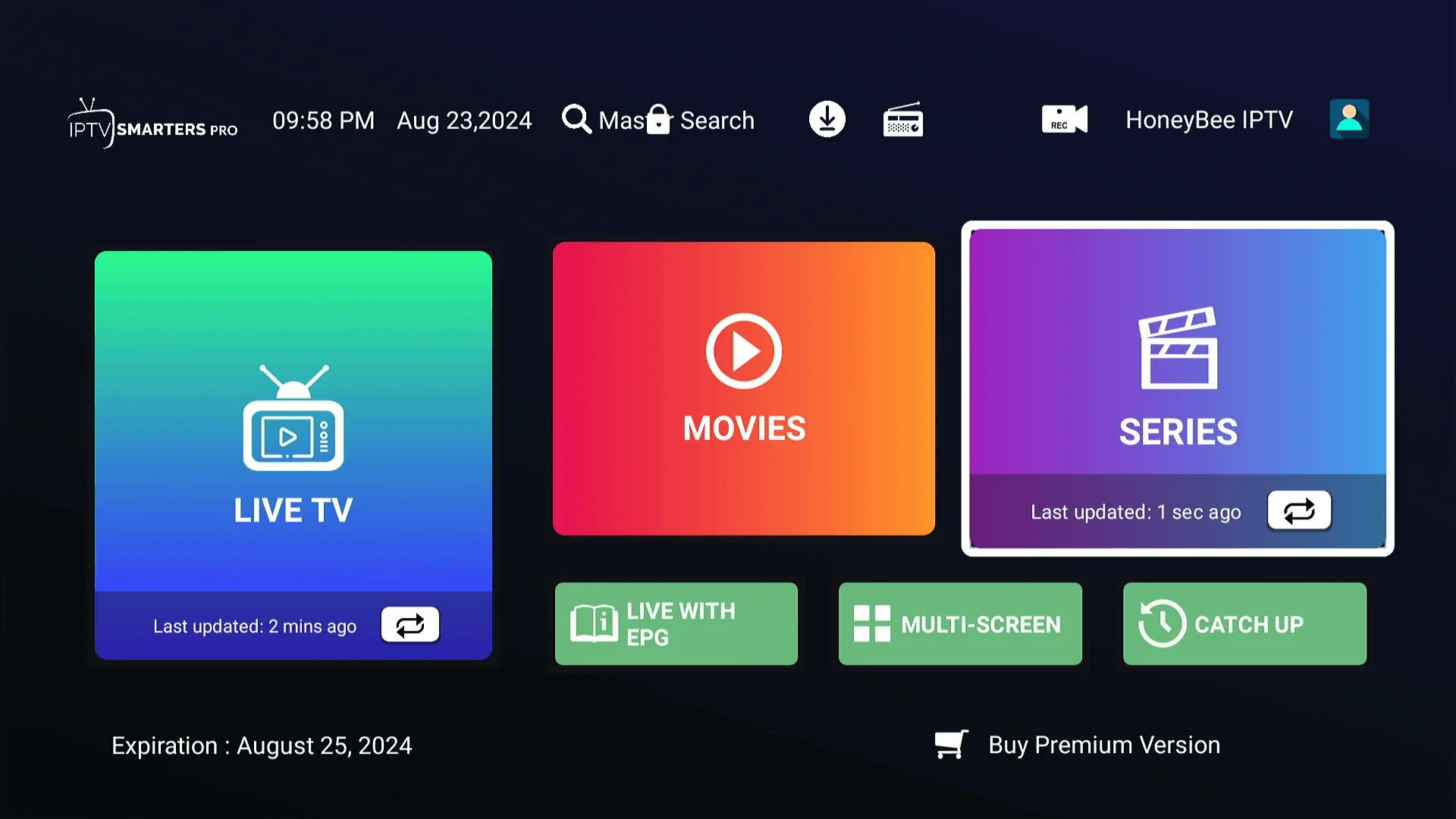
Start Streaming!
You’re all set! With the player installed, you can now enjoy global entertainment through Pulse TV. Want more? Check out our setup hub or upgrade your experience with our subscription plans!